
MyLO - My Learning Online
Hiding your assignment from students View
This guide shows you how to hide an assignment from view within MyLO. You can also choose to hide an assignment folder as a way to review marks and feedback given. More information on how to do this can be found here: Reviewing Class Marks for Moderation
To hide your assignment from view:
Navigate to Assignments.
Do one of the following:
- Click the Actions menu for the assignment you want to hide and click Hide from Users.

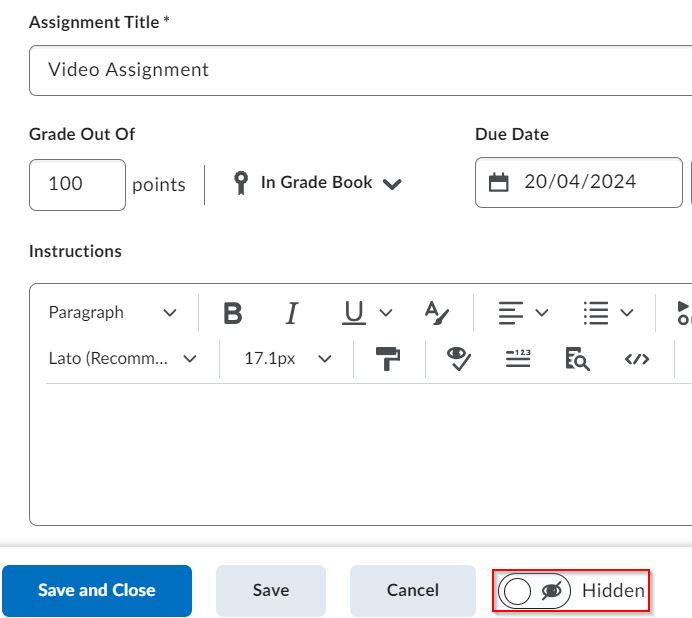
- Click the Actions menu for the assignment you want to hide and click Edit Assignment. Change the visibility state from Visible to Hidden. Click Save and Close.
The hidden icon will appear next to the assignment in the Lecturer view of your Assignment Submission Folders. Students will not be able to see this assignment until it is made visible.

If you have added a link to your assignment in content and it is hidden from users it will be set to hidden in content:

Note: Setting the Assignment folder to Visible will remove the hidden status and it will be made visible to students here and within the assignment folder.
Once you are ready for your students to view the assignment or your moderation is complete you can make the folder visible to students easily by selecting the option Make Visible to Users