
MyLO - My Learning Online
Uploading Marked Assignments
Marked assignments can be bulk uploaded with individual files either automatically or manually associated with the submitting student.
File Names
The name of the file(s) you upload is important.
- If the filename is identical to one that you downloaded via Download the Assignments process then it will be automatically associated with that submission when you upload it.
- If the filename is unique then the system will ask you to manually associate it with a student's submission when you upload it.
Assignment Submission Folders page
From the Unit Home, select the Assessments menu and click Assignments Click on the Submission Folder you wish to upload into.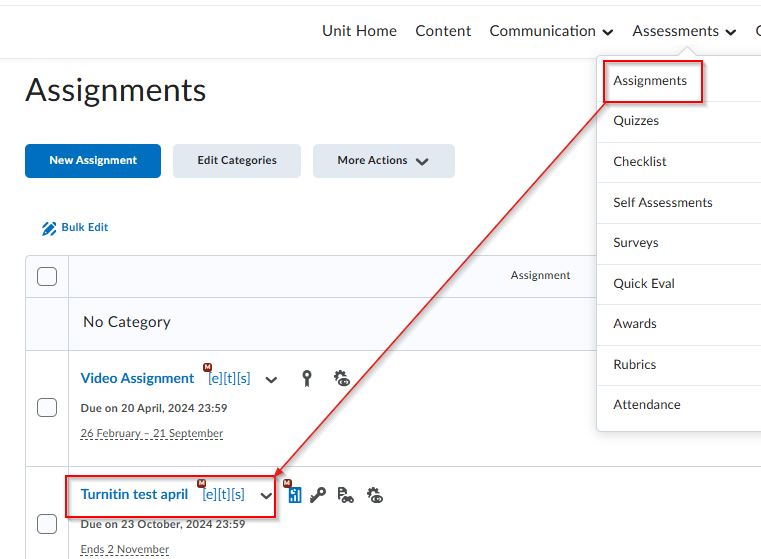
Submissions Folder page
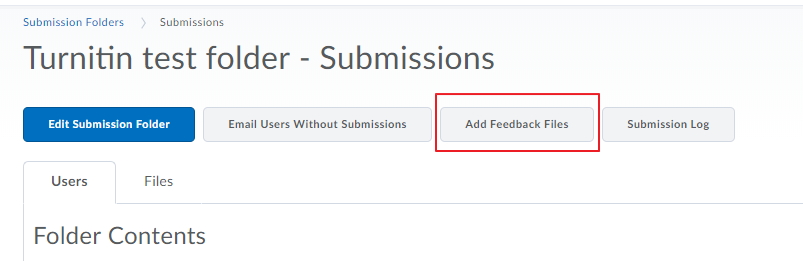
Click on the Add Feedback Files button 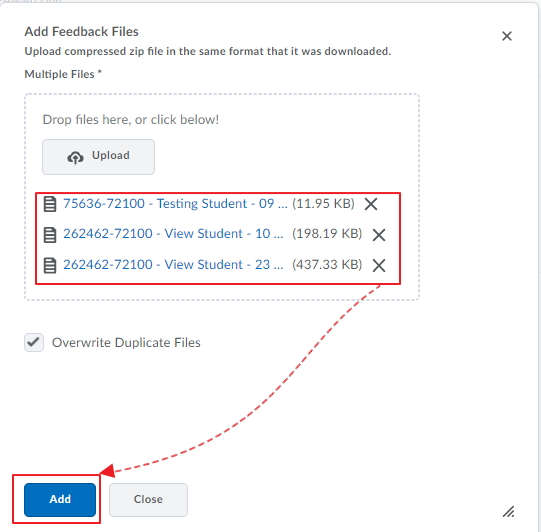
Drag and drop one or more marked assignment files, or your re-zipped file and click Add. You can elect to overwrite existing feedback files if any are found. If the system cannot find a match to an existing student submission (see note above on filenames) then you will be prompted to manually associate it. When completed, a pop-up will appear at the bottom of the screen, noting the number of files successfully uploaded.
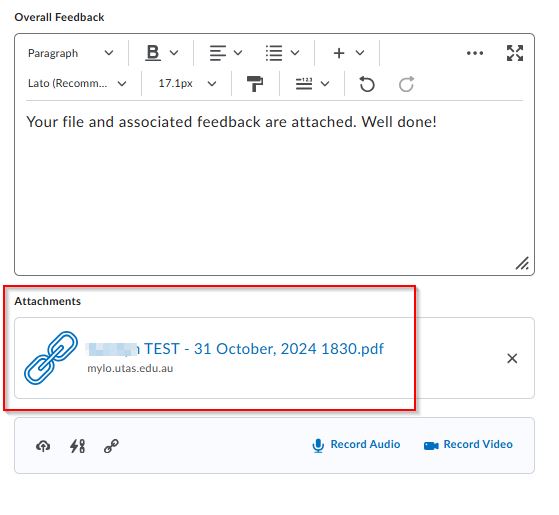
Each uploaded file will appear at the bottom right of the Evaluate Submission page for each student’s submission
Note: For students, once published, this feedback file will appear below the comments in the Feedback field, not in the same place as the file the student uploaded for submission