
MyLO - My Learning Online
Trialling a Unit as a Student
This desktop guide outlines how you can participate in your unit as a student using the Impersonate function.
This is especially useful for testing aspects of your unit prior to students being enrolled, and for solving any difficulties your students may experience.
There are two ways to impersonate the student view user, both are shown below:
Via MyLO Mate:
MyLO mate adds an impersonate Student view option in the navbar of your MyLO unit.

Pressing on this icon will allow you to impersonate the user straight away.
You can tell that you are viewing this unit as a student because the View student's name will be in the top right of the window.
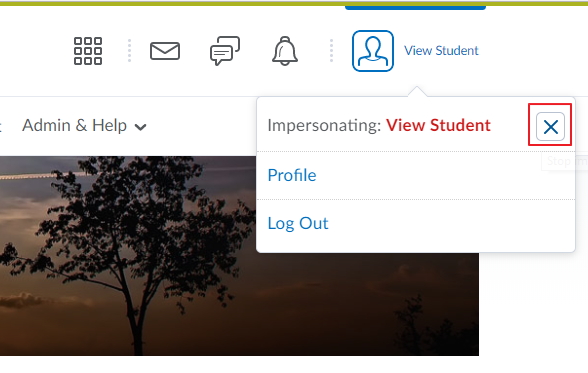
When you wish to revert back to your normal view pull down the menu to the right of the student name and click the X button.
Your profile will return to its normal state and you will be able to navigate your unit again using your normal role (e.g. lecturer).
Via Classlist:
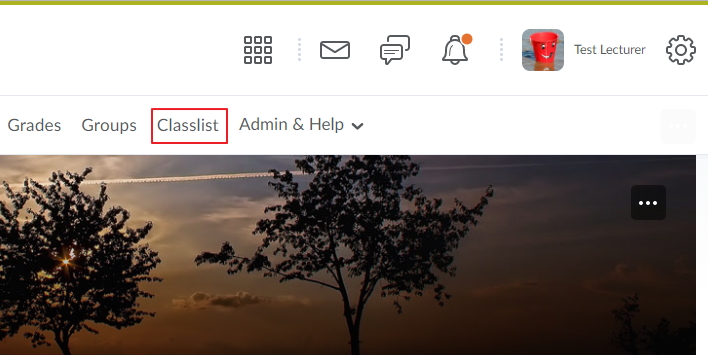
From your Unit homepage, click Classlist
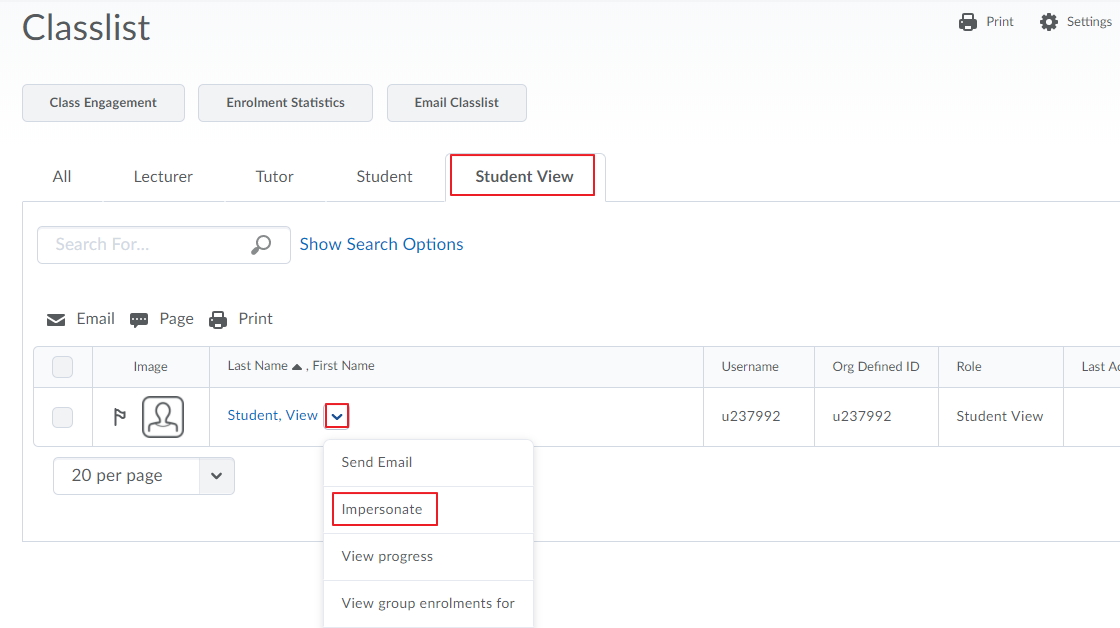
Press on the Student View Tab.
You will now be able to see the Student View user. Click the drop-down menu next to this student and select Impersonate. Click Yes to confirm
You are now viewing the unit as a student and can complete student activities such as quizzes, upload assignments and test restrictions you have added to your content.