
MyLO - My Learning Online
Using the D2L Templates to create content in MyLO
How to Use the D2L Templates
The D2L Templates are available to all units in MyLO. To use these templates you will need to use MyLO Mate, which is available to all staff teaching roles within MyLO. It will appear in the Navbar of MyLO:
Pressing on Show all Config allows you to set your preferences for MyLO Mate. Further information on MyLO Mate is here.
Create a New Templated Page
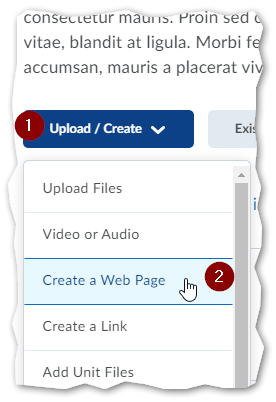
- In the Content tool, browse to the module the new page is to be created in, then select Upload / Create > Create a Web Page.
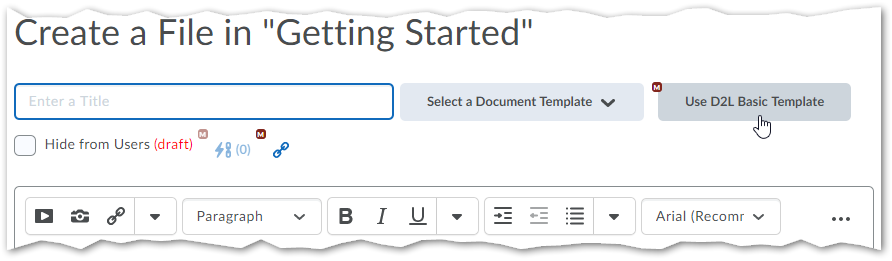
- Select the new Use D2L Basic Template button, or another template from the Select a Document Template list.
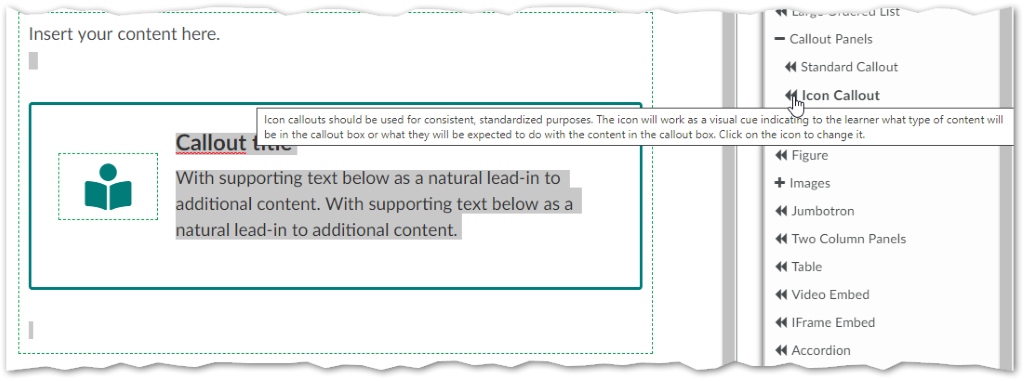
- Editable regions are indicated by dotted lines. Click in these areas and select components from the new D2L Templates Sidebar (hover for preview).
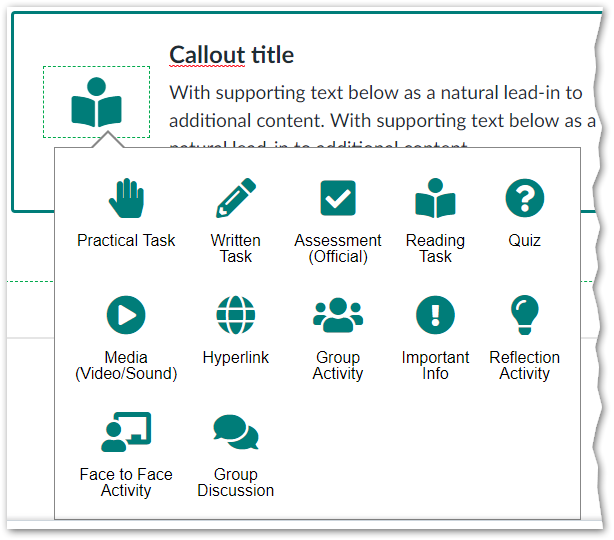
- Icon callout panels are inserted with a default icon. Click on the icon to get a selection of recommended icons.
- You can optionally include a banner image at the top of your new page. Select Show banner to display the default template banner, and select Choose banner to replace it with your own. Be sure to check the licensing for the image if it is not your own. Recommended image size is 1200 px by 300px. Tick the option to use the same banner for all your pages.

Support
MyLO MATE is not a centrally supported project, so please contact the Service Desk if you have any issues.