MyLO - My Learning Online
Marking Discussion Contributions
When marking a Discussion Topic, it is possible to provide students with an overall mark and feedback for the Topic as a whole.
Students are able to view their grade and feedback from the Grades Tool. This guide shows the steps for viewing and scoring, and providing feedback on student contributions to a Discussion.
The Discussion List page
Access the Discussion List page by pulling down the Communication menu and selecting Discussions.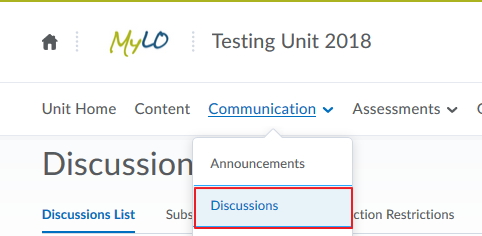
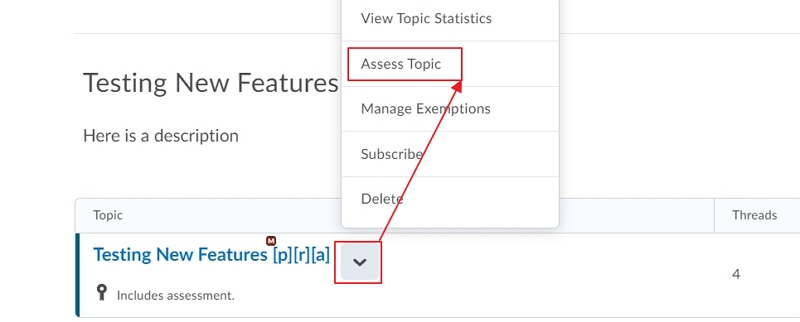
Access your discussions within MyLO and from the topic choose to Assess Topic from the drop-down options.
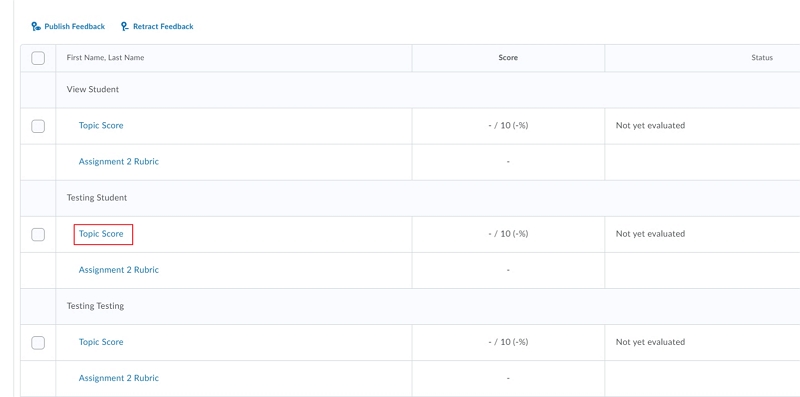
Press on Topic Score to begin marking within the discussion tool.
This will open the evaluation area for discussions.
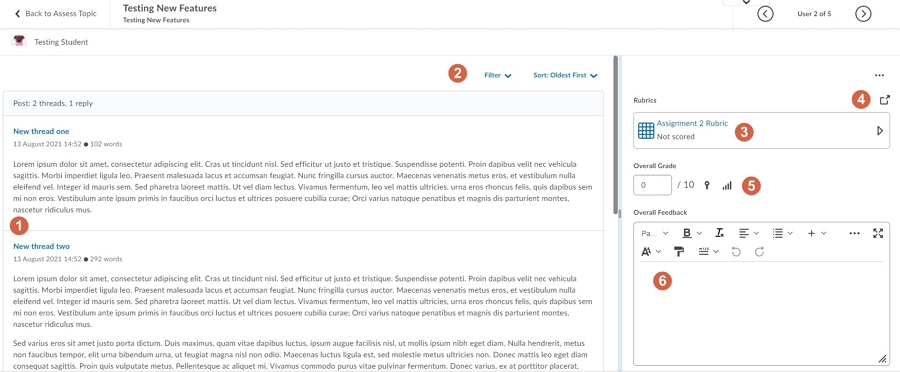
- The students threads and replies are all listed for you to easily read.
- You can filter by thread or date.
- The Rubric is shown here. Pressing on the arrow will open up the rubric to be graded via a slider
- Press on open to open the Rubric in a new window to score that way.
- The grade will be auto filled from your rubric (unless it is a text only rubric)
- Add your overall feedback, including adding files and recording video and audio.
- Select to Save as draft and work your way through all the student.
Publishing student scores
When you are finished marking all the students you can publish the grades.
Click on the Publish All Feedback
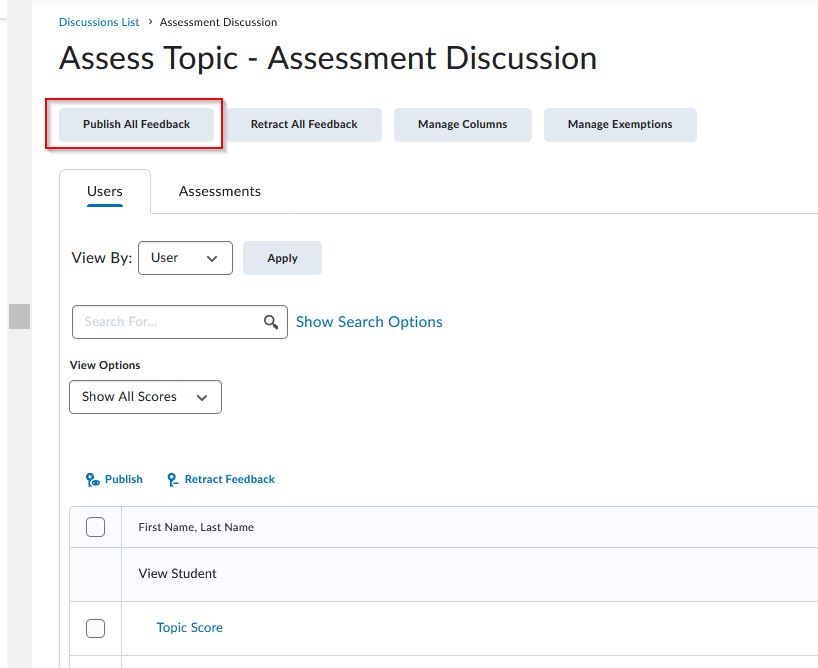
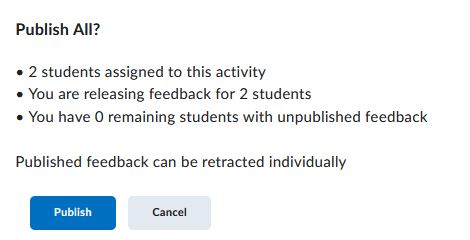
A confirmation message will appear. Press Publish.