
MyLO - My Learning Online
Creating interactive Echo360 content
One of the many types of content you can create within H5P is the ability to make your videos interactive. This includes any Echo360 videos you own.
Further examples of the use of interactive videos can be found here https://h5p.org/interactive-video
An example of a Echo360 Interactive video is below.
To create an Interactive Video:
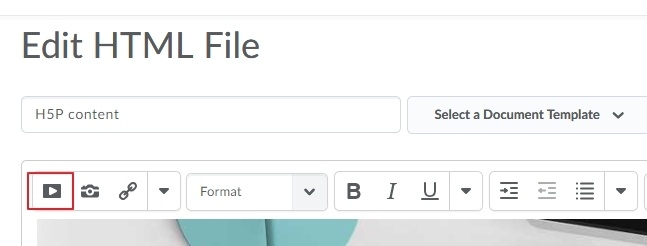
In MyLO go to any HTML editor and press on Insert Stuff or access https://mylo-utas.h5p.com/ :
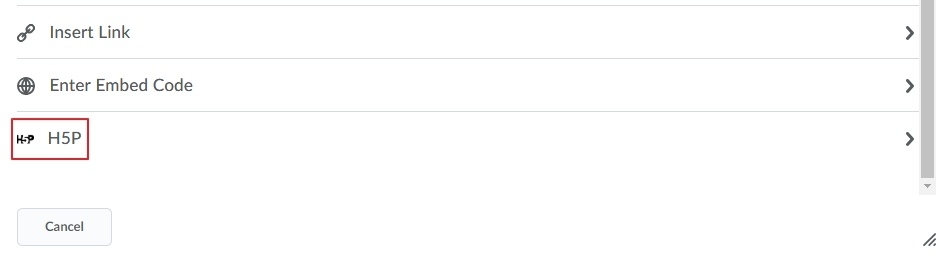
Select H5P ( you will need to scroll down):
This will bring up your personal H5P screen. Press on Add Content. Choose Interactive Video as the content type.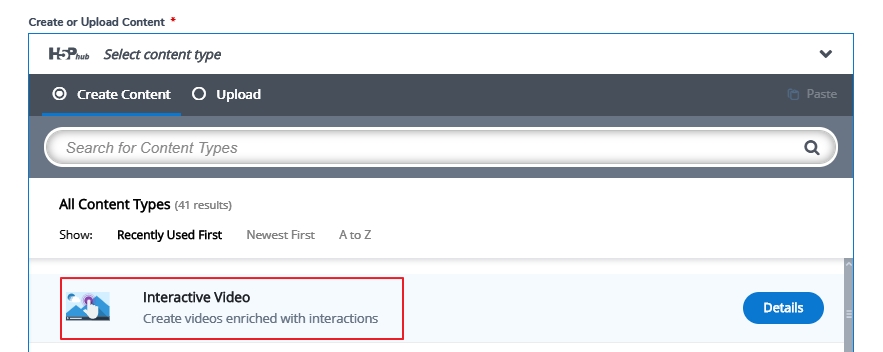
As with any H5P item, you will have the option to view a demo or view examples. Press on Add a Video. Here you can add an eEcho360 video via a URL. See this guide on how to create the URL.
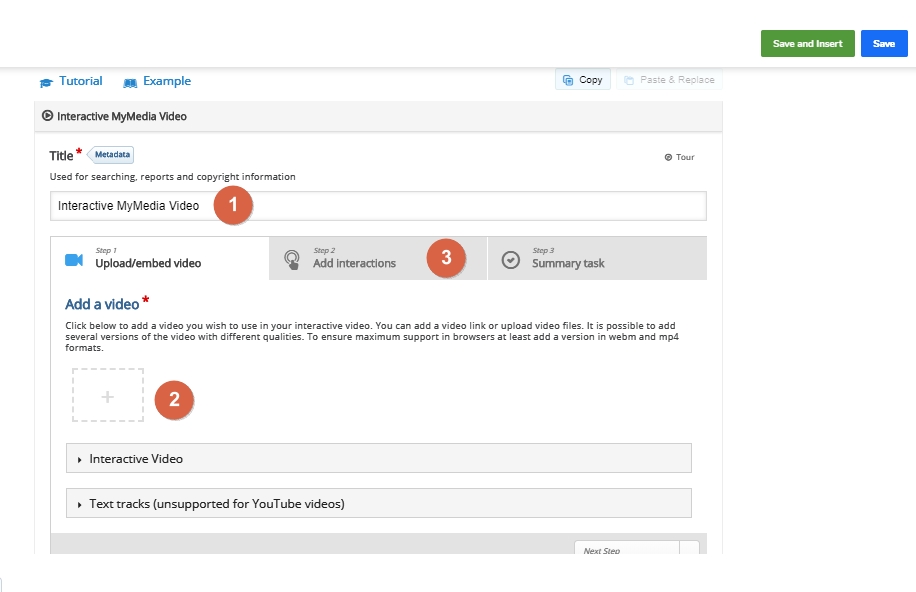
- Enter a title for your File to make it easy to find
- Add your Echo360 H5P link here
- Press on Add Interactions once the file has been loaded.
Play your video. Stop at an appropriate time and add an interaction. There are a number of types to choose from which include drag and drop, multiple choice questions, mark the words and true or false. To add an interaction press on the type you want to use. This will open a new window for you to fill in the details of the interactive component. 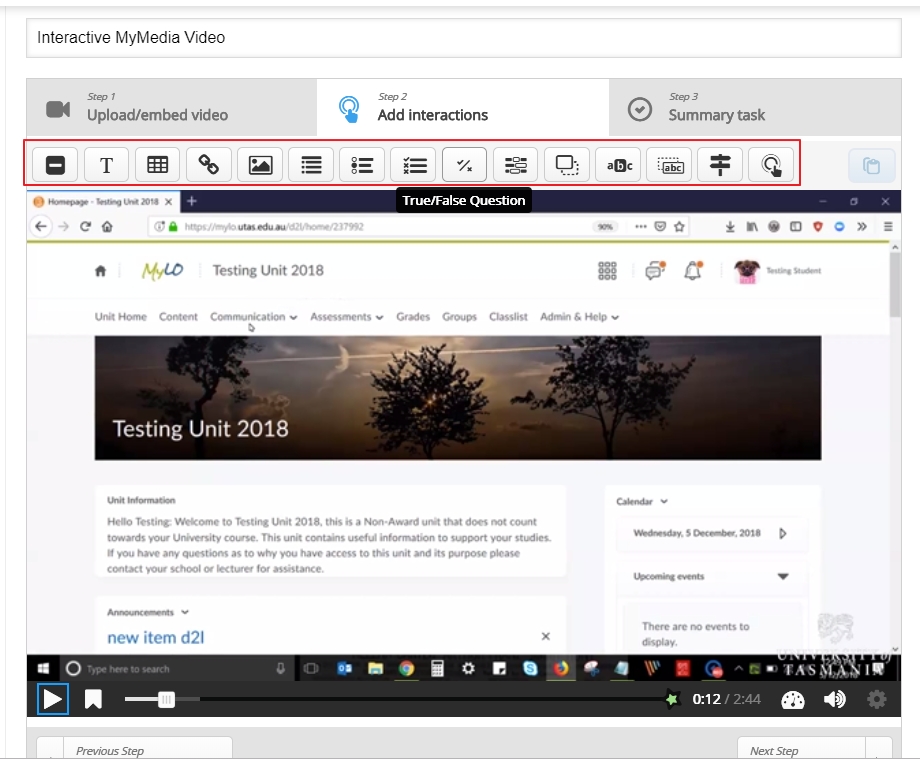
Fill in all the relevant details, including feedback for a correct or incorrect answer and press Done.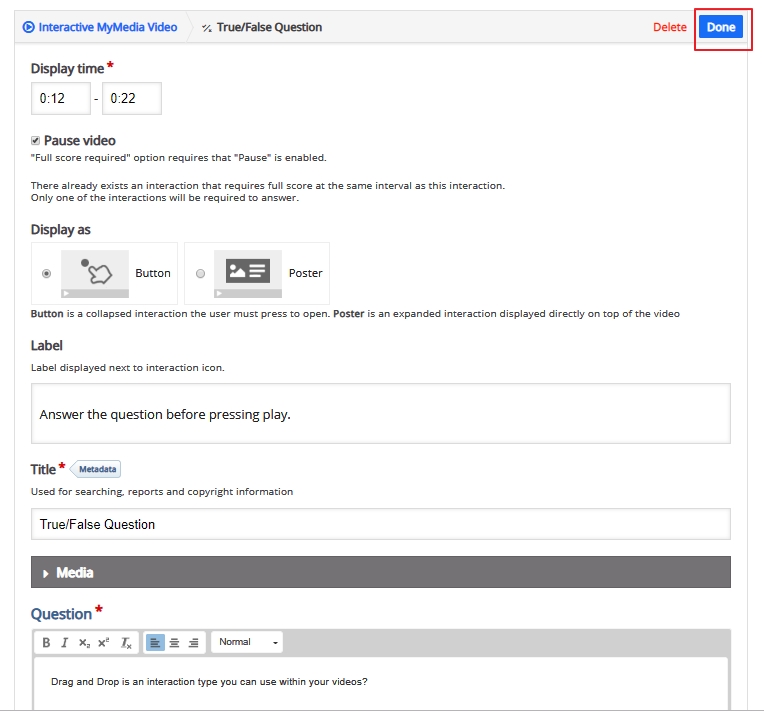
You can now move the button to somewhere within the video. Add any further interactions then move onto the Summary Task tab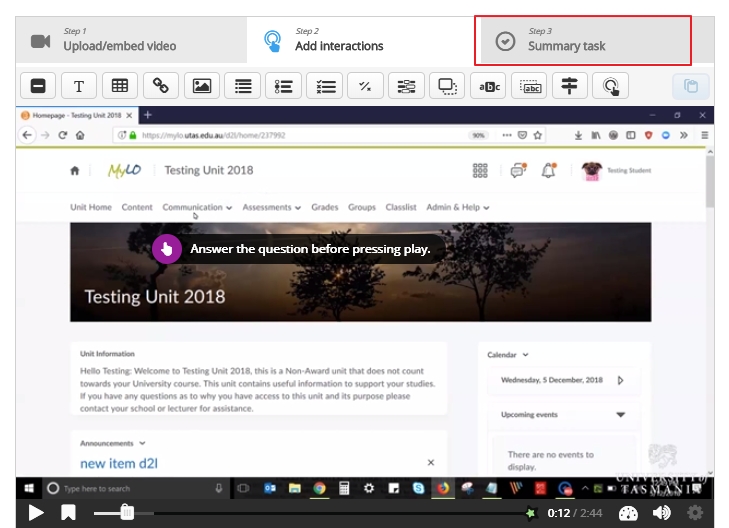
Put in a set of summary statements, which allows the student to reflect on the information given within the video.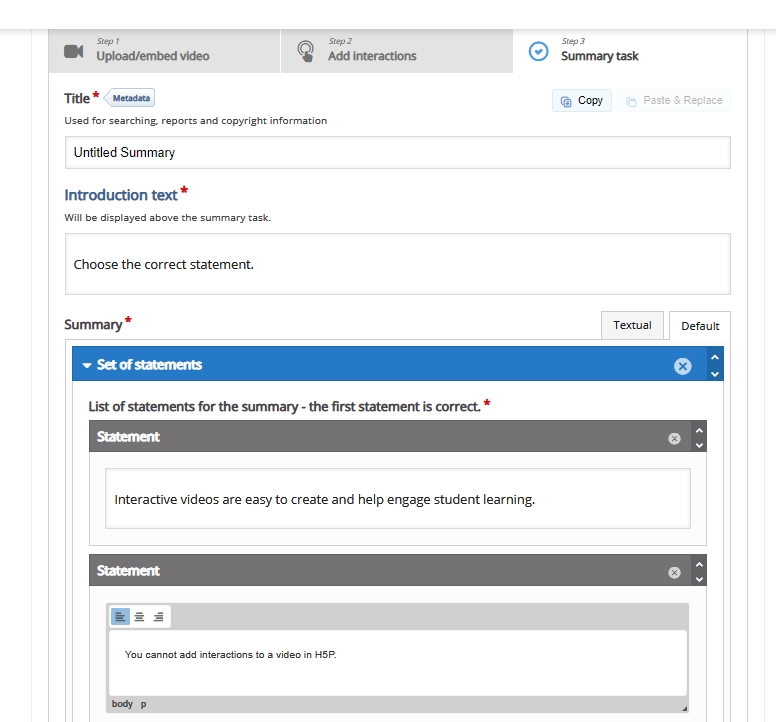
Scroll down and update any display options. If in MyLO you can now press Insert to place the file in your web page.