
MyLO - My Learning Online
Syncing and using Sets within PebblePad
With the move to LTI 1.3 with PebblePad, we can now utilise the ability to sync groups from within MyLO into PebblePad automatically. Managers can enable or disable the syncing of LMS-defined group structures at the workspace level. The new features also allow managers and external assessors to be added and removed from LTI enabled ATLAS sets. These changes can be easily managed through the ATLAS sets manager or sets wizard, which enables educators to better manage and customise sets for assessments.
Key Benefits:
- Increased Flexibility: Organisations now have the ability to manage tutors and external assessors directly within LTI-enabled sets, offering greater control over who is involved in the assessment process.
- Streamlined Workflows: These enhancements simplify assessment management, reducing manual work and improving the overall efficiency of managing sets and participants.
- Expanded Functionality: Building on the existing student set syncing feature, the updates provide more robust tools for managing different roles within sets, making the process more comprehensive.
- Enhanced Learner Experience: Learners will experience a more organised and streamlined assessment process. The increased flexibility in managing group sets ensures that they are placed in appropriately structured groups with the right educators, improving the quality of feedback, assessments, and overall learning outcomes.
To enable synced sets:
When creating your ATLAS workspace for your unit, select the Sets tab. Choose Yes and press Finish.
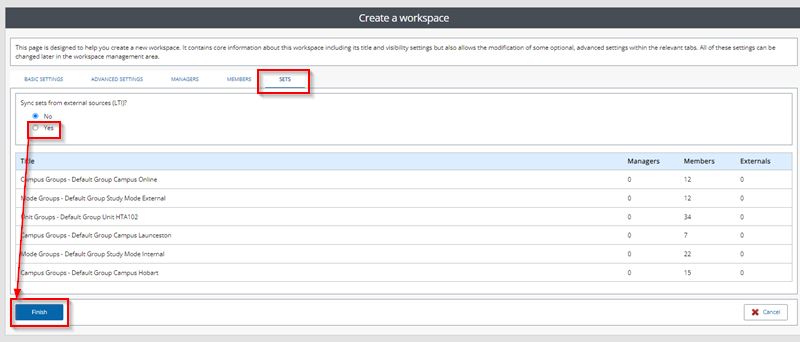
Note: this is turned off by default and can be turned on at any time after the workspace has been created.
You can access Sets within the workspace:

- You can select to Sync sets from external sources ( MyLO) here.
- A list of the groups from within MyLO appear here.
- You can see the number of members, managers and externals within each group.
- Pressing on the icon will allow you to add or remove members to your set.
To add tutors or externals to your set press on the Add/Remove icon. Select to add either Managers or Externals from the drop down. You can search for users and see the role the user has within the workspace. Tick all users who need access to the Set. Press Add selected users.

They will now be added to the Set. You can remove manually added users via the same process.
