MyLO - My Learning Online
FeedbackFruits: Tips & Tricks & Known Issues
Status of Syncing between MyLO and FeedbackFruits
FeedbackFruits has introduced a new feature which allows you to check the sync status of a FeedbackFruits activity and a MyLO unit.
The sync statuses displayed include enrolments, groups, deadlines published to the unit's calendar, and grades published to MyLO gradebook. These can be manually re-synced if required, but should be automatically updated.
Further detail is available in the FeedbackFruits guide "How to check sync status of an assignment grade" on the FeedbackFruits website.
Publishing to Grades with FeedbackFruits
While it is possible to embed FeedbackFruits within a web-page or add a FeedbackFruits activity via a Quicklink, if you wish to publish the FeedbackFruits grades to the gradebook you will need to add the activity as a separate link. This will then allow you to create a grade item within the gradebook. Ensure once the grade item is created that you then move it to the correct category so that it aligns with the MyResults project.
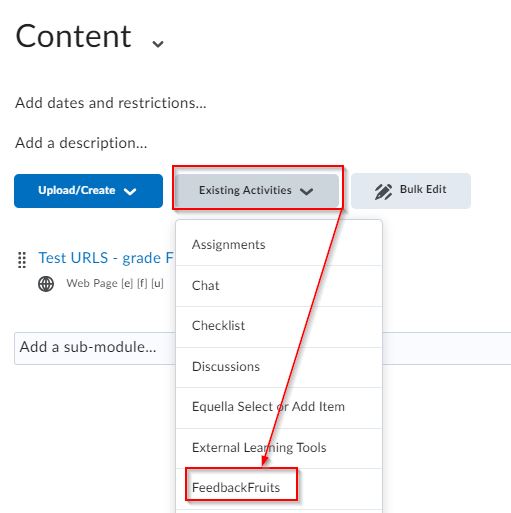
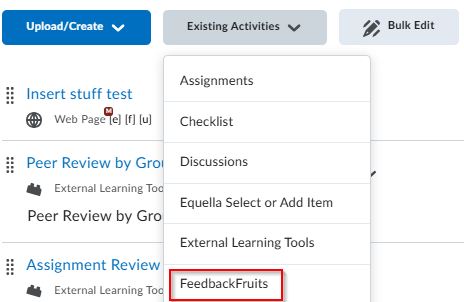
Add your link to FeedbackFruits via your Module/ Existing Activities/ FeedbackFruits. Copy your content or create a new item.
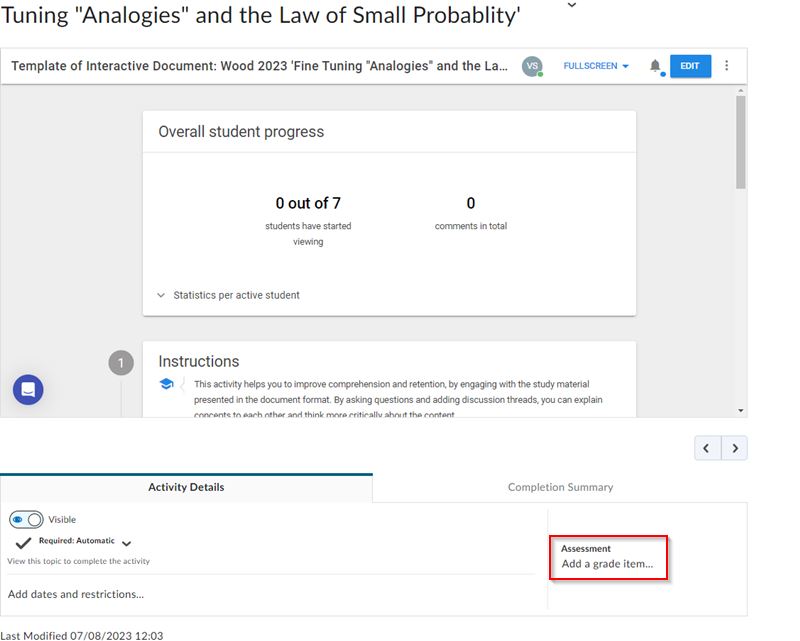
Open the FeedbackFruits activity and at the bottom of the page you have the option to add a grade item:
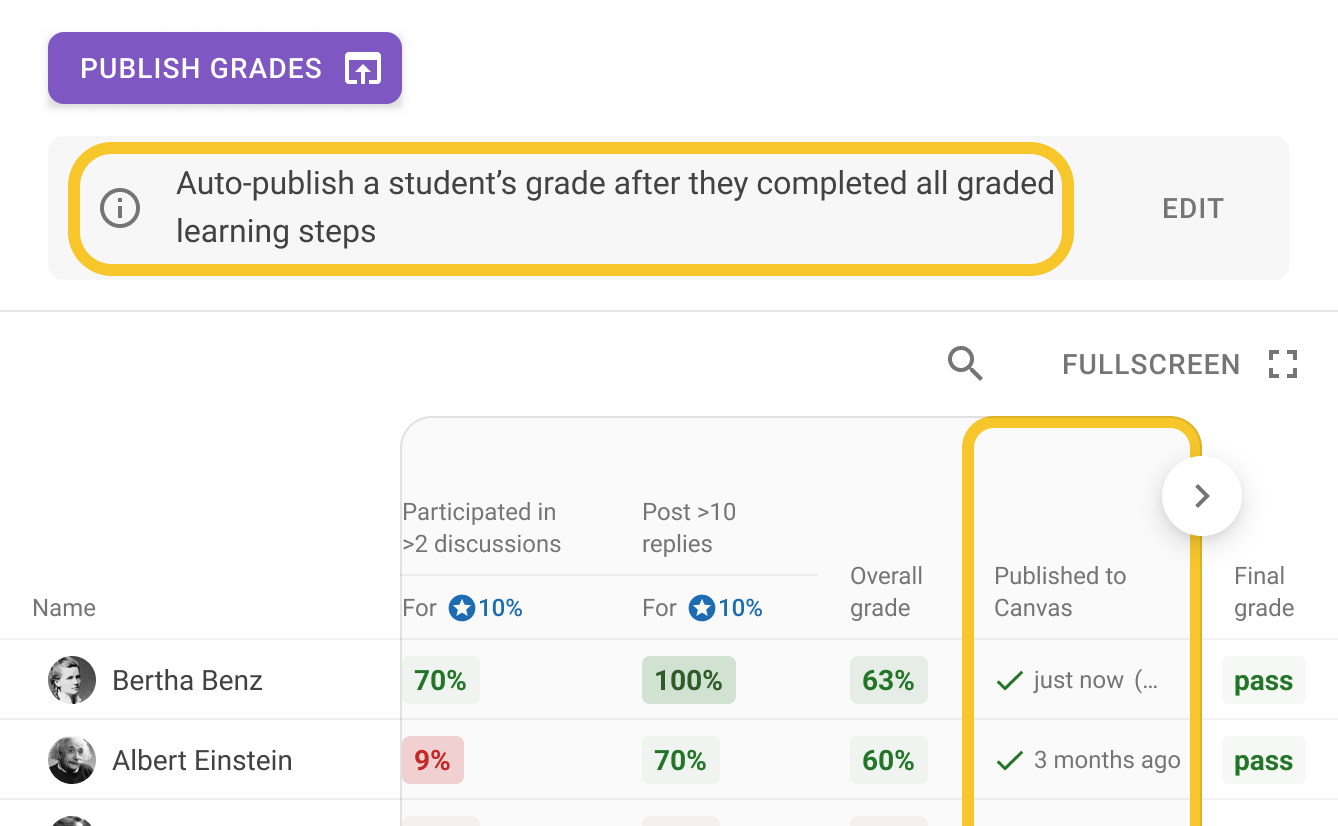
Autopublish grades
It’s now possible to schedule publishing of grades or select for them to be updated continuously upon changes being made within an activity.
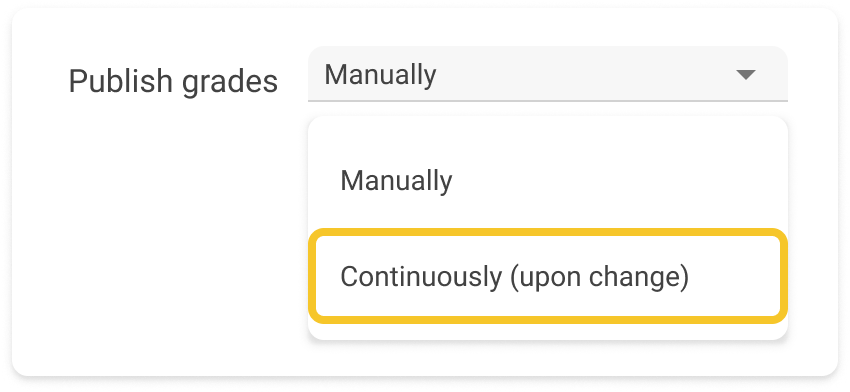
You can edit your choices within the edit view from the grading step.
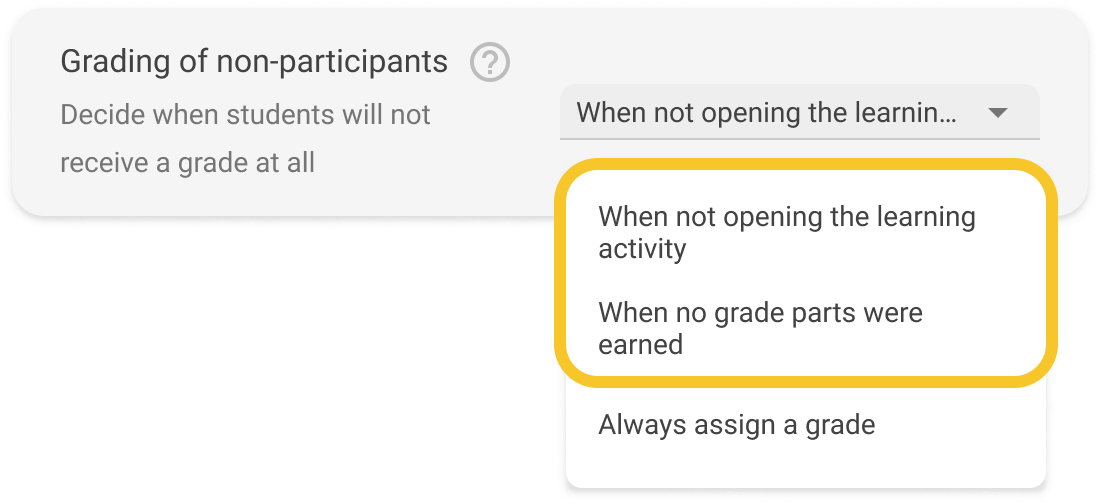
Grading of non-participants
Within an assignment, you can now choose when students should receive no grade at all (a null grade).
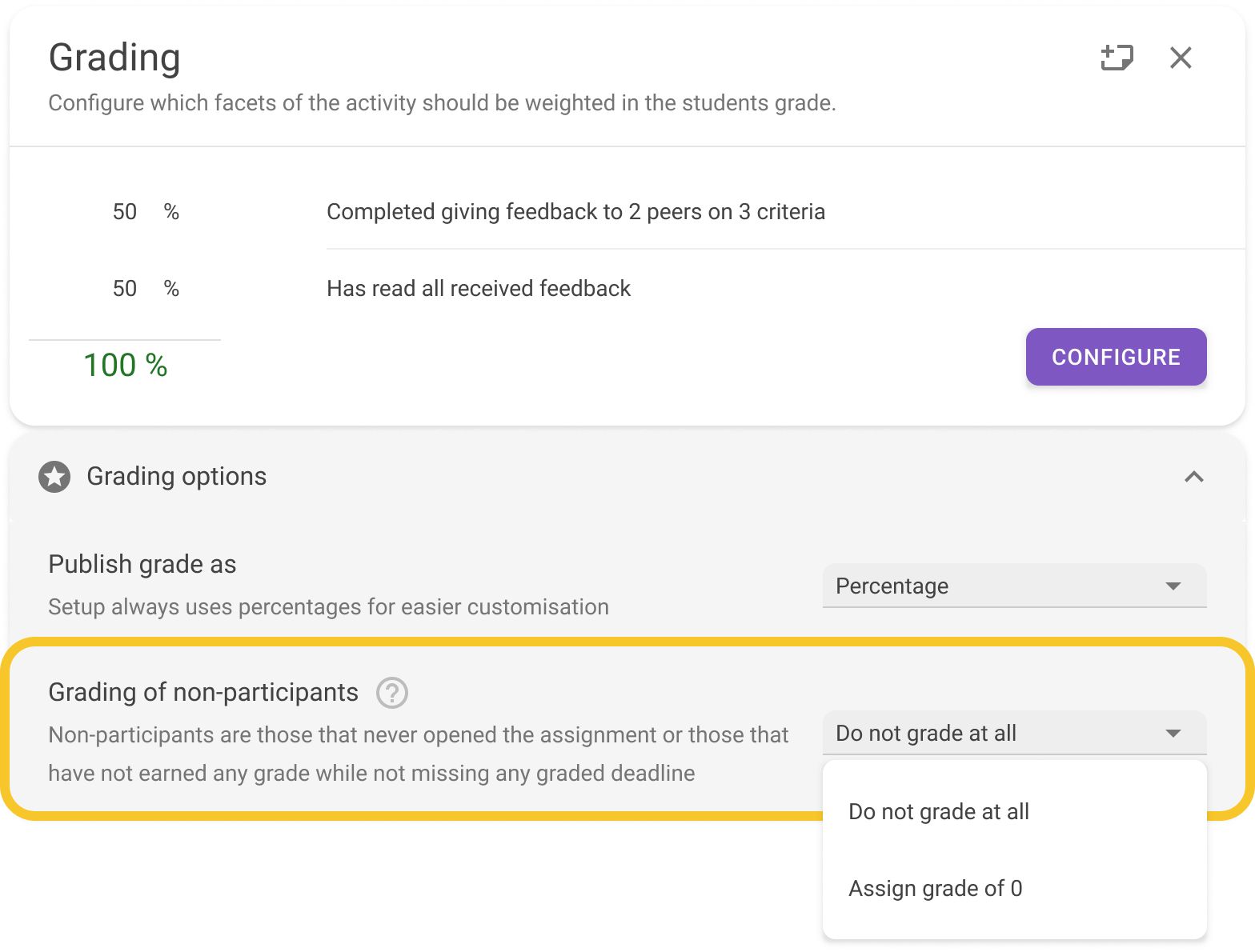
Within the grading module, you can also choose what grade assignment a non-participant will receive - either a null grade (do not grade at all) or an assigned grade of 0.
More information can be found here:
https://help.feedbackfruits.com/hc/en-us/articles/23527133134866-Enable-grading-for-FeedbackFruits-in-your-LMS
Allocate Plus Groups within FeedbackFruits
All groups are synced within FeedbackFruits and can be used for group work.
However we would advise creating your own groups within MyLO and using these rather than those created and pushed into MyLO from the Allocate system.
Allocate groups are maintained outside of MyLO and can be updated by students and staff until week seven of semester, so are not ideal to use for group work as you may need more stability and control over the groups used.
FeedbackFruits Library
My Library:
My library is a place for you to create, edit and manage your templates of activities, rubrics and learning journeys. In here, you'll find three main sections: Activity templates, Rubric templates and Learning Journeys.
Within My Library, only you have access to your templates - these are not shared in the same way as Institutional Libraries are.
Institutional Library:
An institutional library helps to standardise and organise templates, maintain quality, customise as needed, and share best practices like rich rubrics or balanced activities.
Templates provide a ready-made structure that educators can quickly adapt to their specific needs, saving valuable time that can be redirected to other critical teaching tasks.
To access the Institutional templates Select FeedbackFruits via Existing Activities/ FeedbackFruits within content.
Press on Institutional Library either via the icon on the left hand navigation, or via the select box:
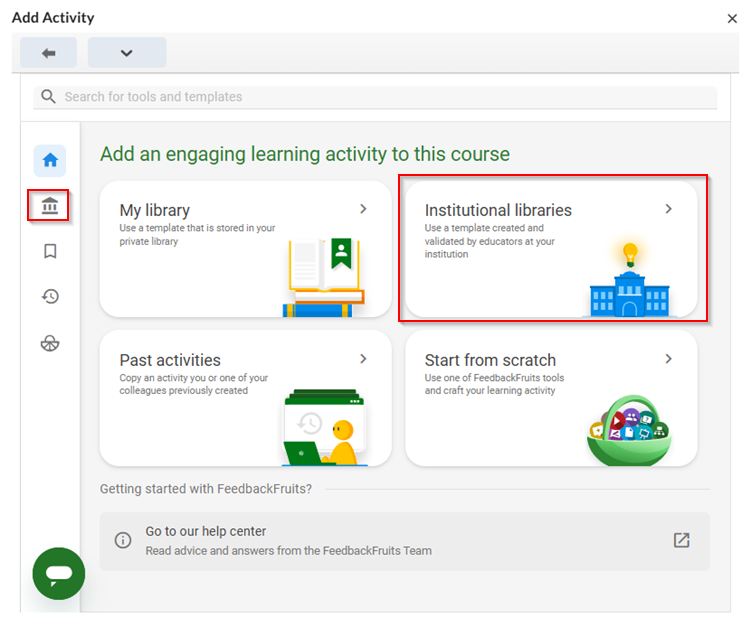
You can then select either the Peer Review or Group Member Evaluation template to use.
Just rename it and edit the details as needed to be used within your unit.
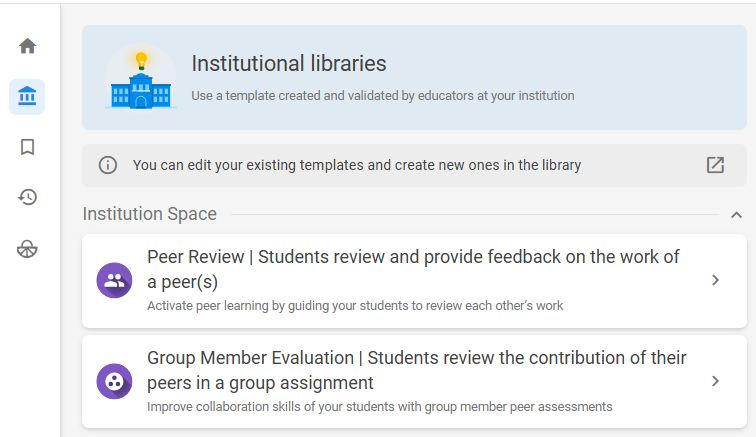
More information on the use of Libraries within FeedbackFruits is here.
Echo360 within FeedbackFruits
Within Feedback Fruits you can upload video- this includes public Echo360 links. This means you can upload existing Echo360 content, such as lectures or tutorials.
Multiple Accounts Error
Sometimes as a lecturer you may have more than one account created within FeedbackFruits. If this occurs when you press on a FeedbackFruiits link you will get the error message below:
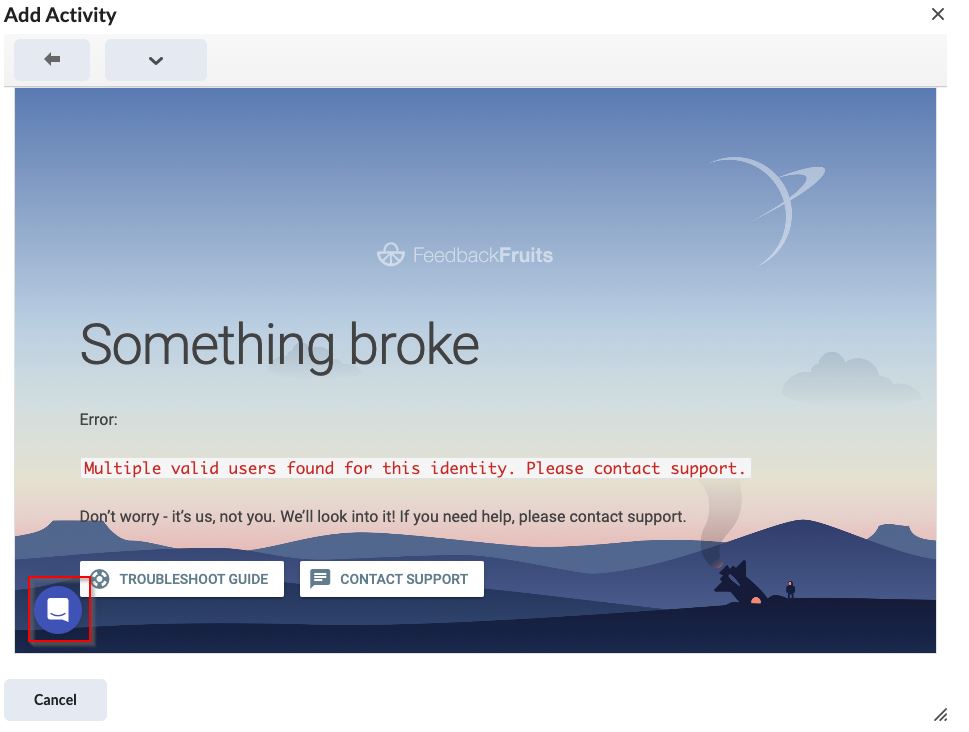
In order to fix the problem you will need to contact Feedback Fruits support. Do this by pressing on the Purple Chat icon, or press on contact support as shown in the above image. FeedbackFruits support is 24 hours.
Issue when deleting an Activity with due dates within FeedbackFruits
There is a current bug within FeedbackFruits if you:
* Create an activity
* Add a due date to a component
* Delete the activity
The associated due date calendar entry is not removed within the MyLO unit.
The current workaround is to delete the calendar entry manually. Note that all other activities update the calendar as expected.
Turnitin within FeedbackFruits
Since September 1st 2023, FeedbackFruits integrates with Turnitin, the well-known plagiarism checker. We aim to detect and prevent plagiarism in student work, ensuring more honest and original student submissions.
The new Turnitin UX improvements will allow teachers to see at a glance which percentage of plagiarism each student submission has. Now, in the ‘Submissions step’ we have added a ‘Plagiarism check’ column, indicating the percentage of plagiarism found on each submission. When the teacher clicks on a percentage, more information about the submission can be found:
% Overall Match: The average percentage of text in the submission that was found to match other sources.
% of Matched internet text in the submission: The percentage of matched internet content in the submission.
% of Matched publications text in the submission: The percentage of matched text between the submission and other publications, such as academic articles or books.
% of Matched submitted works text in the submission: The percentage of matched text also found in Turnitin’s submitted works database. Thus, identifying if the submission matched the submission of another student.
As well, this window will allow teachers to access the full Turnitin plagiarism report by just clicking on ‘View report’.
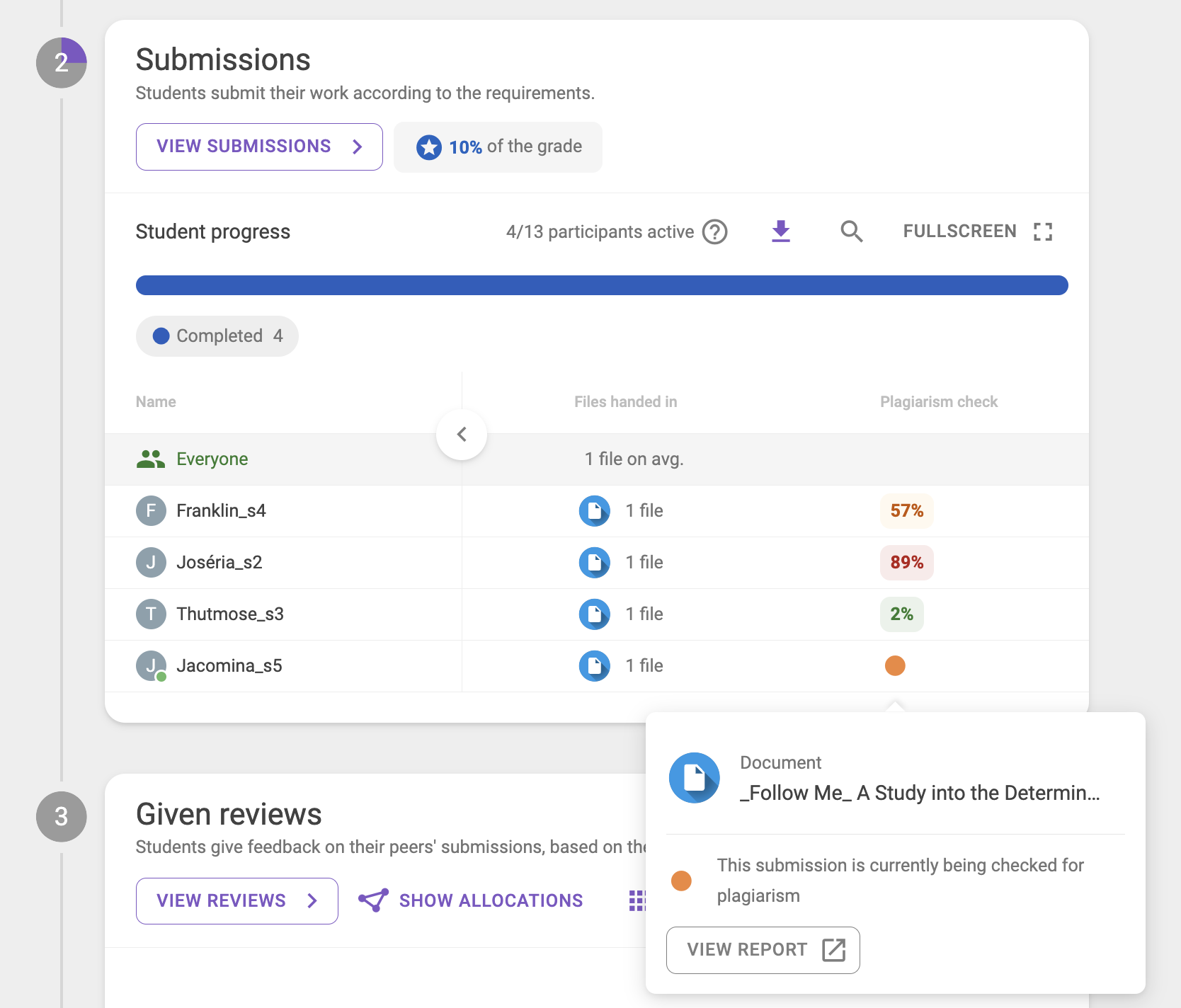
(Fig.1: Submissions module displaying the different percentages. The intermittent orange dot represents the loading plagiarism check.)
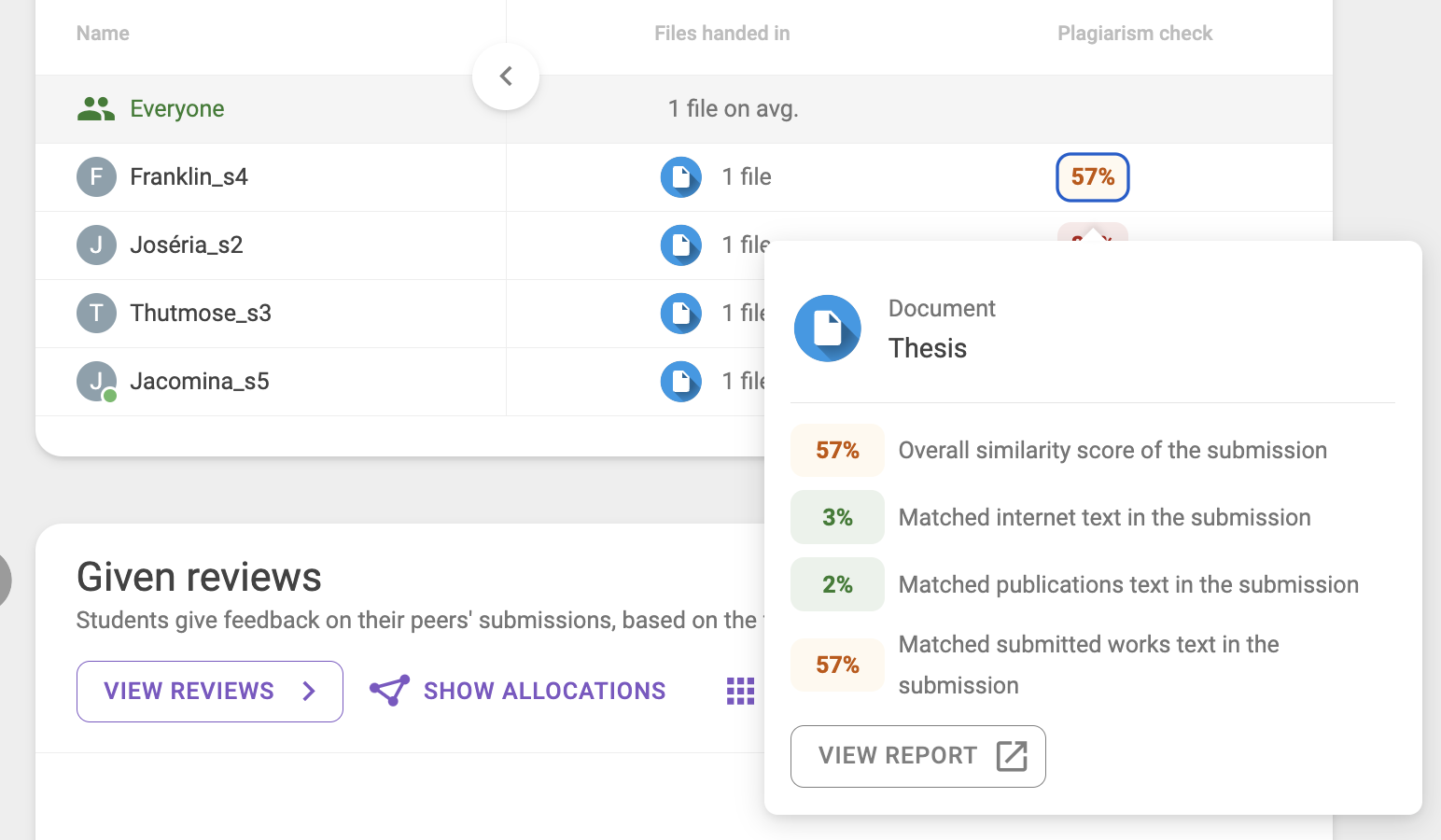
(Fig.2: When clicking on a submission, displaying the different percentages.)
NOTE: FeedbackFruits DOES NOT do the plagiarism check nor has any plagiarism settings —this is carried by Turnitin. FeedbackFruits only displays the plagiarism percentage detected by Turnitin, which is based on the settings that the teacher or the institutions have set up themselves. For more information, please see the related articles:
Ability to add subtitles within Interactive Videos
FeedbackFruits have enhanced their video processing capability. They are compatible with many more video formats, faster loading times, and the possibility to auto-generate subtitles.
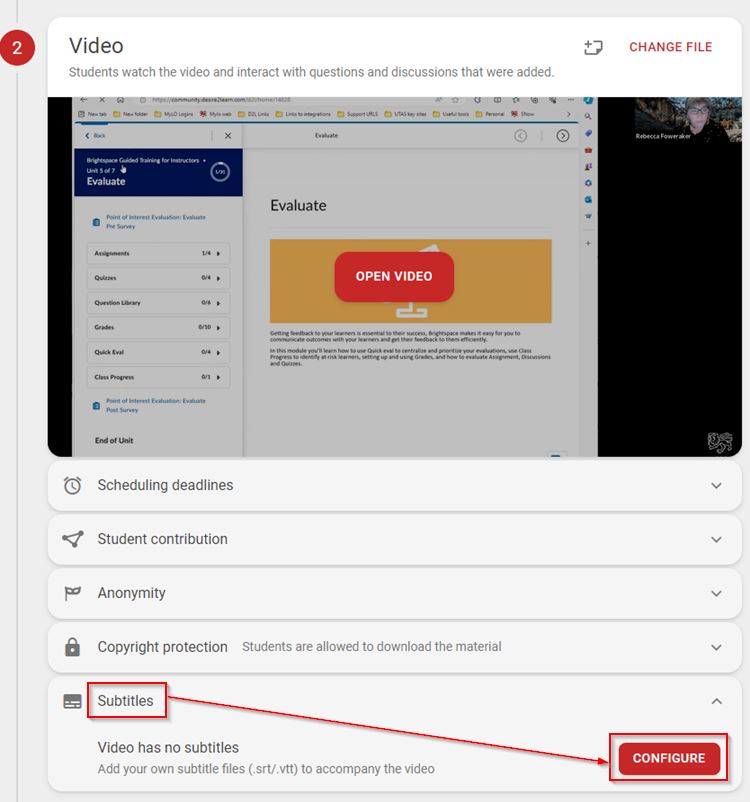
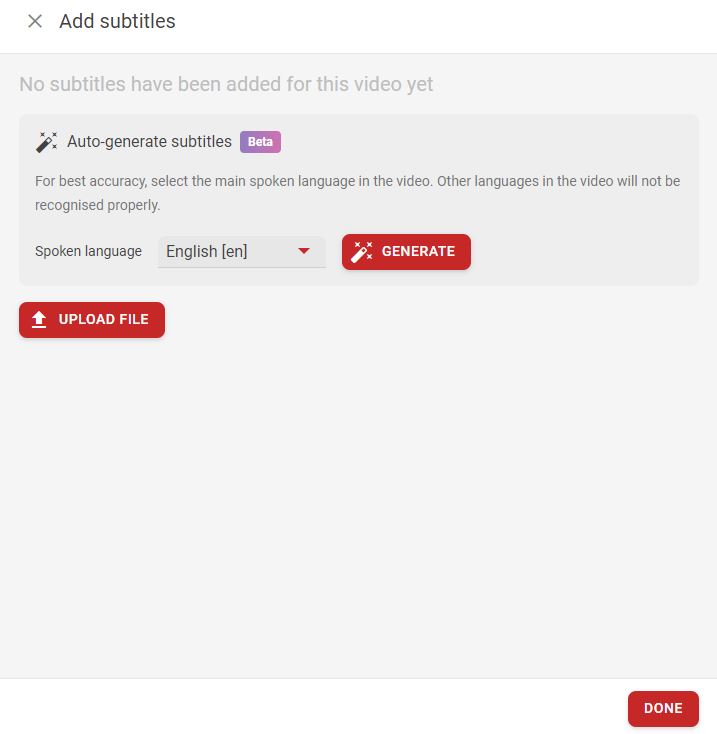
How do the autogenerated subtitles work? When adding a video to Interactive Video, it will be as easy as navigating down to the ‘Subtitles’ setting, clicking ‘Configure’ and then select ‘Auto-generate subtitles’. Thanks to speech-to-text technologies, the subtitles will immediately appear at the bottom of the video, available in any language. Please note that it is not possible to edit them.
Upload your new video to your Interactive Video assessment. Select Subtitles and Configure.
Select your Spoken language and press Generate. You can also upload an existing subtitle file. Press on Done.
The subtitles are now available for students to turn on when viewing the recording.
Grade event log shows another user updating grades
If you are associating a grade item with your FeedbackFruits assessment, you may notice a number of odd usernames appearing in the event log of the grades.
When you publish a grade from FeedbackFruits into the gradebook this will be noted not by the user who pressed Publish , but instead a super user of FeedbackFruits- administrators of the system.
You can see these details if you go to the gradebook/ enter grades and select to enter grades for the grade item.
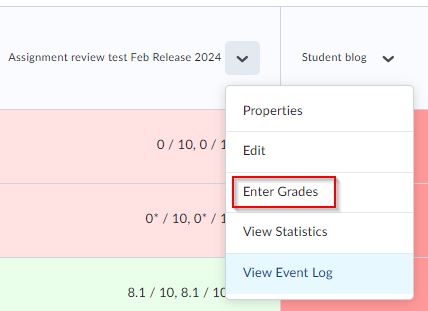
From here you can view the event log for each student.

Below you can see:
- Super user within FeedbackFruits username
- LTI ( Learning Tools Interoperability) user - a user created to manage integrations between products within MyLO.

There is no need to worry if you see these users within your grades event log.
Synchronising Deadlines within the unit Calendar
Introduction
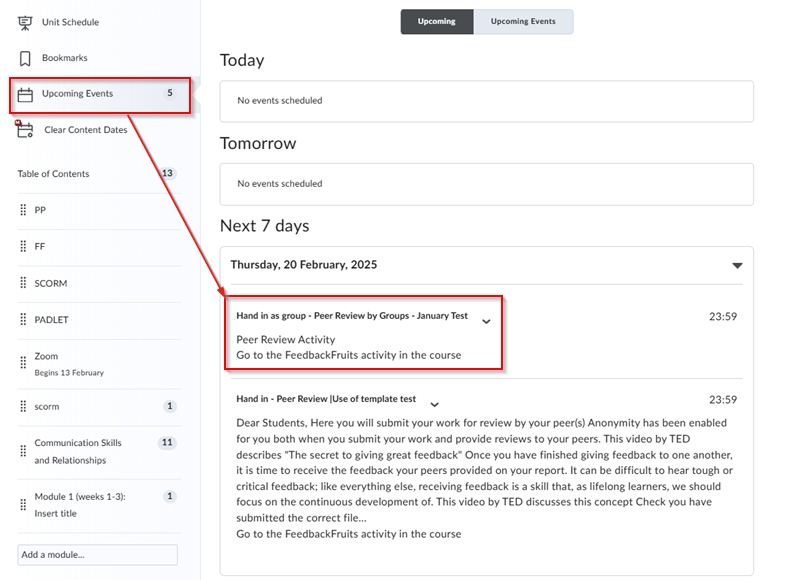
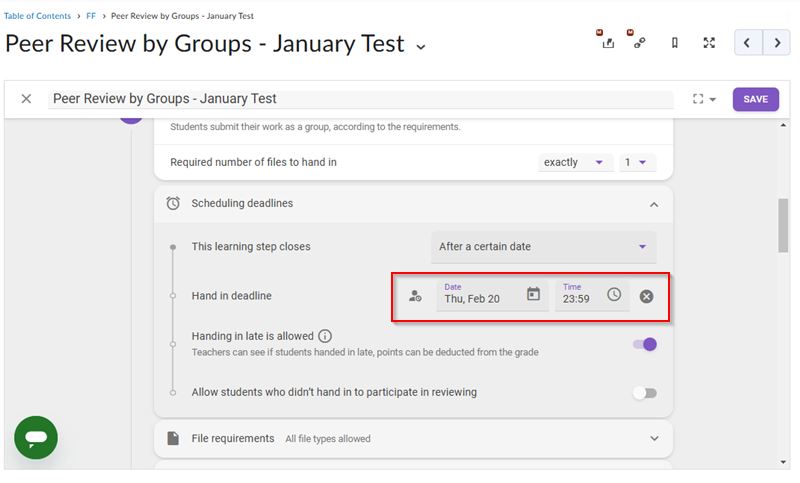
Now that we are using version 1.3 of FeedbackFruits, if you schedule dates within your assessments, FeedbackFruits will automatically send the set deadline to the calendar in MyLO. This way students have the deadlines for FeedbackFruits assignments displayed within the calendar and Upcoming Events in their unit.
Deadline Rules
The deadline is sent to the units calendar right after the assignment is saved. If the deadline is adjusted from within FeedbackFruits, the new deadline is synchronised with the calendar.
If you have multiple deadlines in one FeedbackFruits assignment, these are visible as multiple different deadlines in the calendar, and are displayed with the name of the step (e.g. Give Feedback - [name assignment] or Read Feedback - [name assignment]). T
Note: If you delete an assignment, the deadline in the calendar is not automatically deleted. You need to manually delete the deadline in the calendar after deleting your FeedbackFruits (test) assignment.
To use this feature add a scheduled date for FeedBackFruits activity:
Upon saving the deadline will be shown in the calendar on the unit homepage:
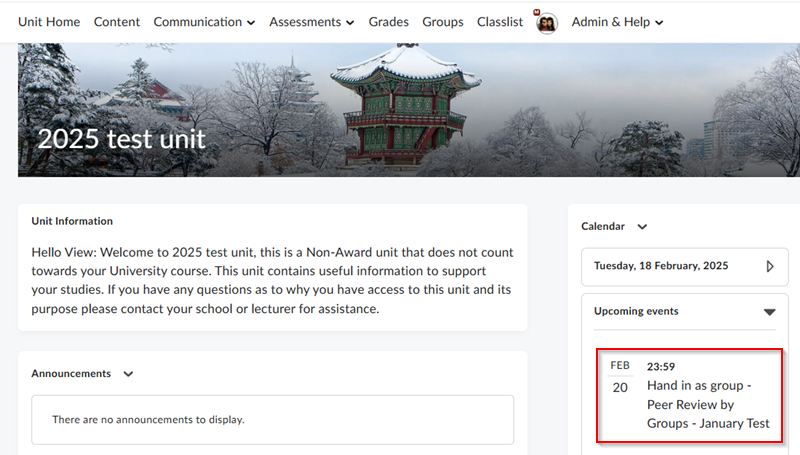
As well as within the Upcoming Events area in Content: