Unit Coordinators wishing to use the Respondus Screen Recording feature available in Respondus LockDown Browser and Monitor in their MyLO units should complete the request form available through the Help Hub.
Here’s a brief overview of how it works: |
| |
 | Lecturers enable the Screen Recording option on a per quiz basis from the LockDown Browser & Respondus Monitor Dashboard. | | | |
|
|
 | The screen recording video for an exam session initially appears below the webcam video in the proctoring results. | 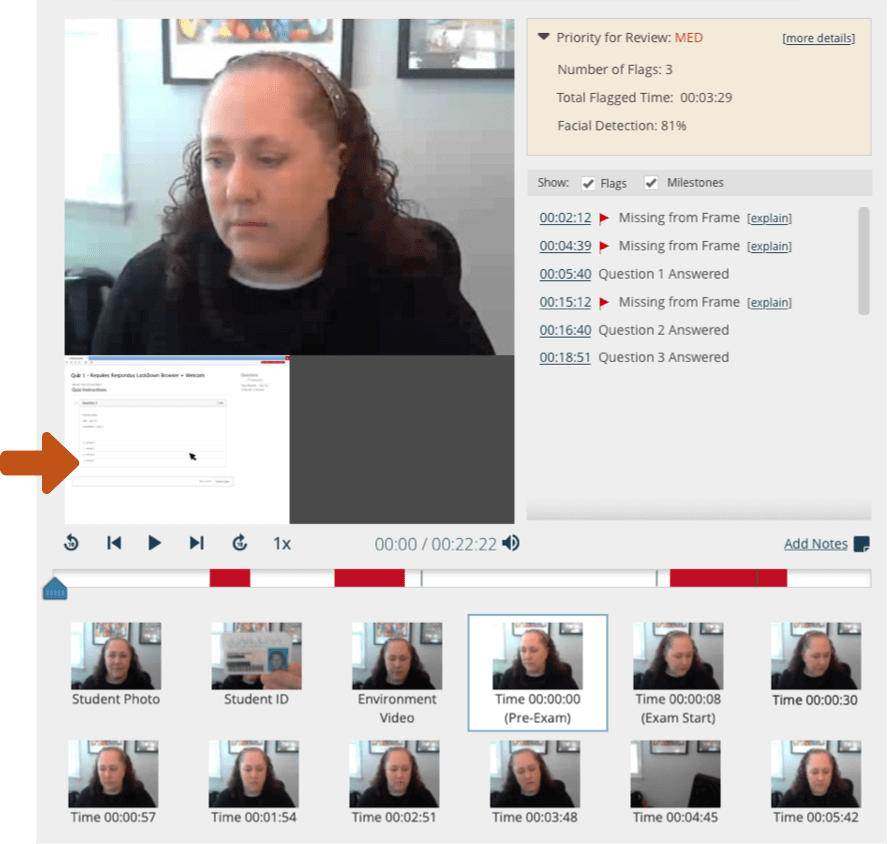 |
|
|
 | Click (or touch) the screen recording video to make it the primary, playback window. The rows
of thumbnail images that appear below also switch to the screen recording view. Repeat this process to
make the webcam video the primary focus again. | 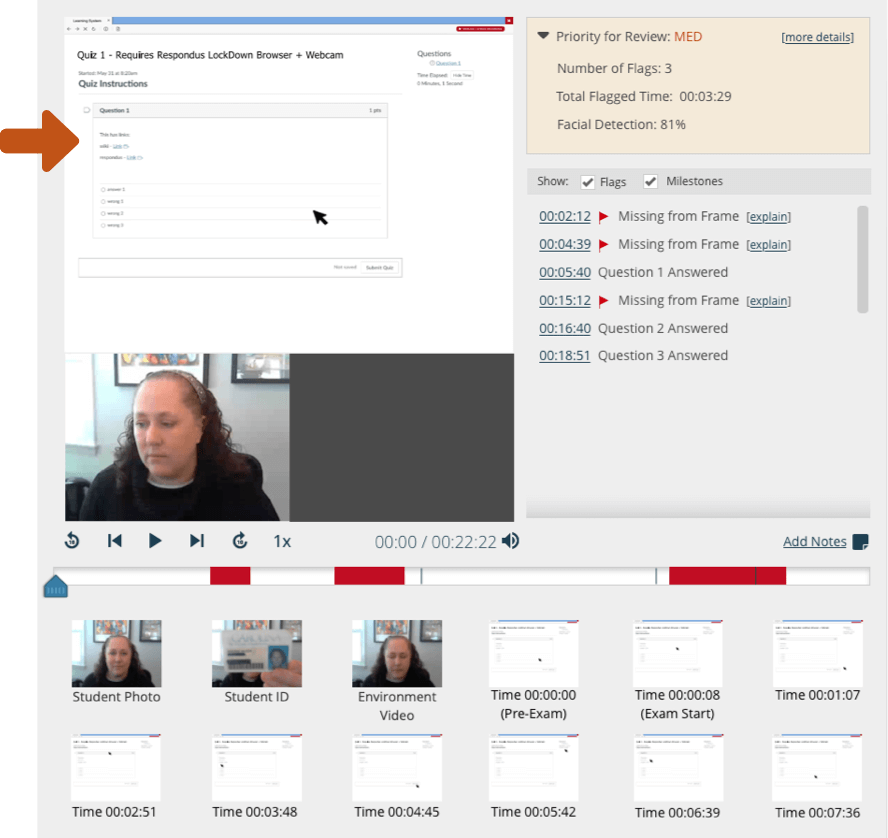 |
|
|
Additional notes about this release: |
* | Screen recording is only available for exams that use both LockDown Browser and Respondus Monitor. |
|
* | There are currently no plans to offer screen recording for iPad users. |
|
* | Institutions with managed devices will need to use LockDown Browser version 2.1.1.00 or later. Students won’t be able to access the exam if the screen recording option is enabled but the LockDown Browser version isn’t current. |
|

