
MyLO - My Learning Online
Using Respondus for Live Proctoring
Instructor Live Proctoring: An Overview
When LockDown Browser is used with “Instructor Live Proctoring,” the lecturer watches students remotely during an online test. This feature requires the use of a video conference system such as Zoom and is intended for small classes where the lecturer can view all students on the screen at once.
The lecturer and students meet in the video conferencing application at a specified time. When ready, the instructor provides students a start code for the online quiz– students start LockDown Browser from there. The lecturer can then watch students via the video conference system for the duration of the quiz.
Note that Instructor Live Proctoring does NOT record the student video, nor does it alert the instructor to suspicious events. These features are only available with Respondus Monitor, the automated proctoring solution.
Unit Coordinators wishing to use Instructor Live Proctoring in their MyLO units will need to complete the Respondus LockDown Broswer and Monitor request form available in the Help Hub.
How to Conduct Live Proctoring:
- Provide students the instructions for downloading and installing LockDown Browser. This only needs to be done once.
- Convey to students, in advance, that LockDown Browser and Zoom will be used with your online quiz. This can be done via an Announcement or Discussion board. It is important that you schedule a practice quiz so everything can be tried in advance to a real quiz.
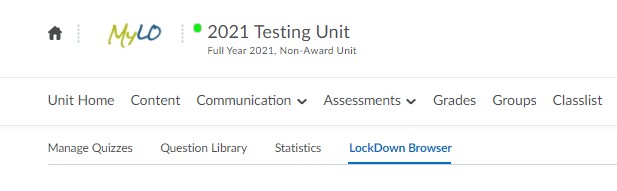
- Once the quiz has been created, press on the LockDown Browser Dashboard within the Quiz area,
select “Require LockDown Browser for this exam,” and select “Allow live proctoring for this exam ...” and then supply a “Start Code” (which prevents students from starting the quiz early).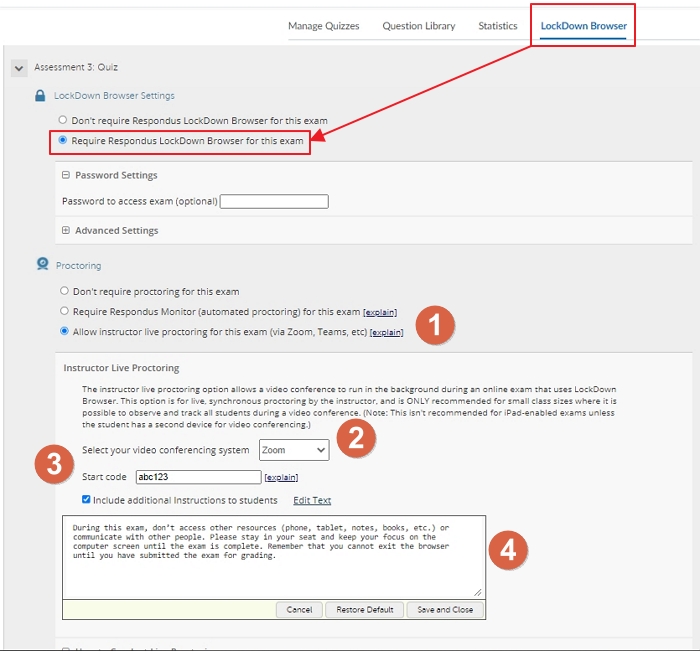
- Select Allow Live Proctoring for this exam.
- Select Zoom from the options available
- Put in a start code that you will give to students once they are all in the Zoom session.
- You can edit the start up instructions if required.
- Press Save + Close.
- Schedule a Zoom session within MyLO for the time needed for the online quiz. Instructions on how to do this are here. Distribute the meeting information to students prior to the quiz via an announcement from within your unit.
- At the scheduled time, enter the Zoom session with your students. Then confirm you can see and hear all students in Zoom. When ready, provide the start code to students to commence the quiz verbally - the code in the above image would be abc123. You can record the Zoom session if you wish.
- Remind students the video conference will continue to run in the background, enabling you to see and hear them during the quiz. However, they will NOT be able to access the video conferencing system during the quiz.
- Students then need to enter the quiz normally - by entering the MyLO unit, going to the quiz tool and pressing on the quiz. Students will then put in the start code to begin the quiz. As seen below.
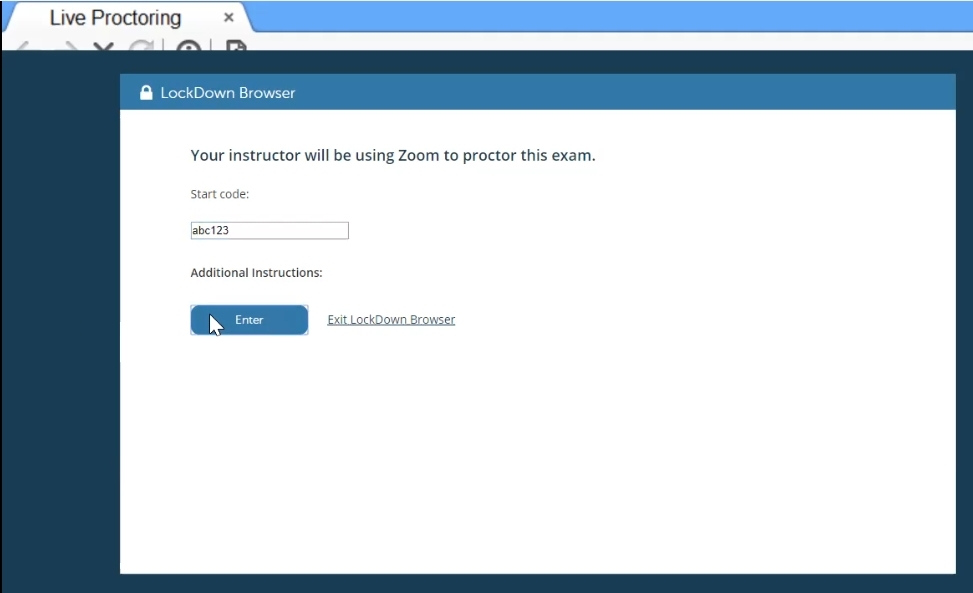
- Once the student completes the quiz and closes Respondus down, they will once again be aware they are within the Zoom session.
Note: An iPad doesn’t allow you to run a video conferencing app and LockDown Browser at the same time. Consider these alternatives:
- Have the student use a different device altogether (Windows, Mac, Chromebook)
- Have the student use a second device for the video conferencing
- Allow the student to shut down the video conferencing system on the iPad when it’s time to start the quiz
A generic video created by Respondus is below which shows how to set up Live Proctoring and how it looks from a student Perspective. The YouTube video starts at 39 seconds in.