
MyLO - My Learning Online
Streamline Grading within a Rubric
This feature updates the workflow of evaluating a rubric and providing feedback to students. Now, markers can quickly assess all ungraded Rubric criteria and then go back through to add feedback where necessary. To provide a more streamlined experience for markers using analytical type rubrics for assessments in the Consistent Evaluation experience for assignments, discussions, and written response quiz questions, the user can automatically set ungraded levels to a minimum or maximum value.
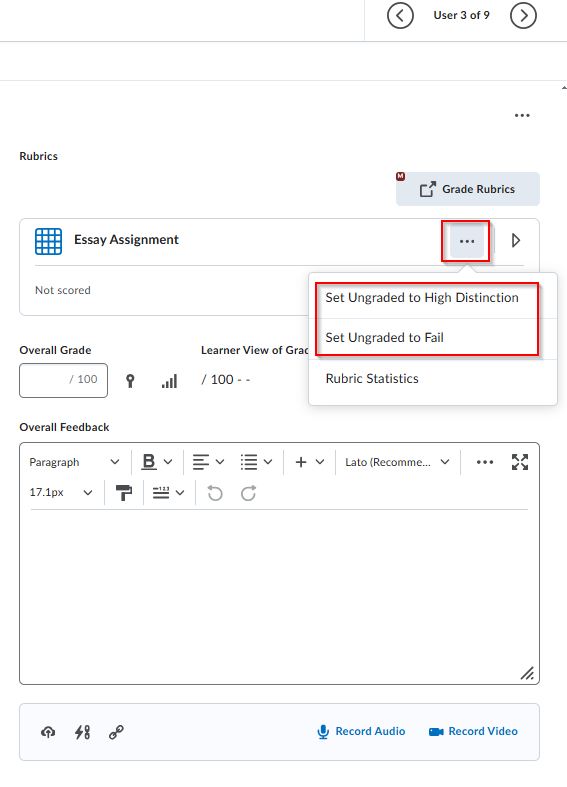
From a drop-down beside the rubric name in each assessment pop-out, or from a context menu in Consistent Evaluation, there are two options:
- Set Ungraded to [top rubric level name]: where all ungraded levels within this rubric are set to the maximum value using the top level of the rubric.
- Set Ungraded to [lowest rubric level name]: where all ungraded levels within this rubric are set to the minimum value using the bottom level of the rubric.
See below:
When you select an option, a confirmation dialog appears to advise of the bulk action and provides an option to undo the update.
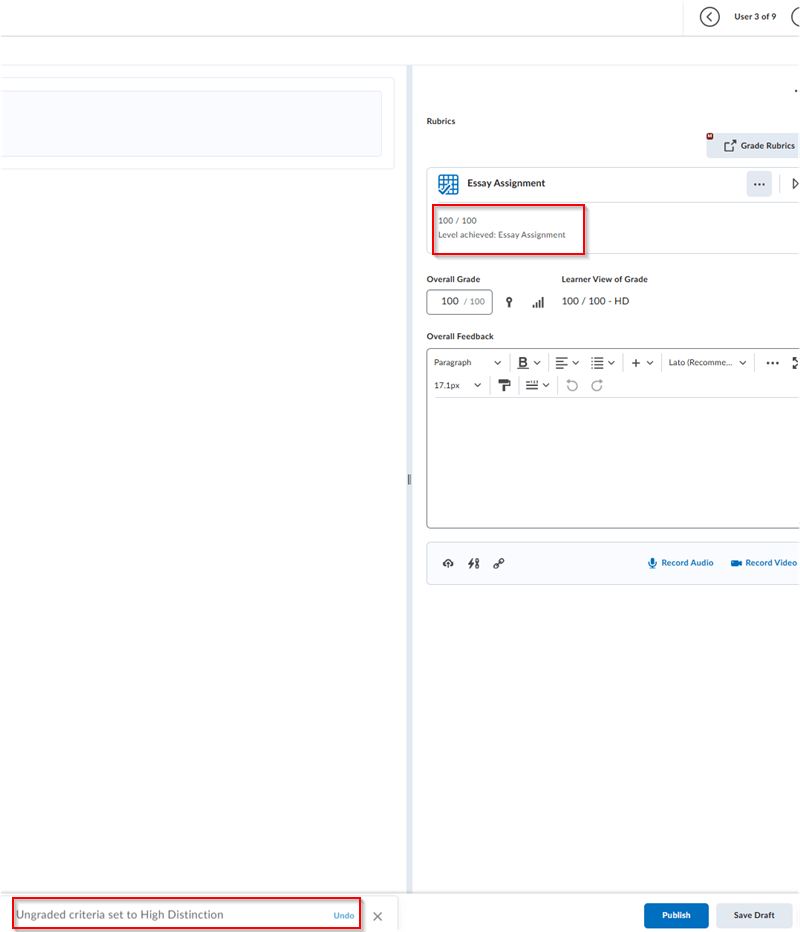
Once done you can open the rubric and add feedback/ or change the level or score as needed before saving as Draft.
Previously, you were required to click individual criteria, which, for large rubrics was a time-consuming task involving many clicks to set the rubric score to 100%.