MyLO - My Learning Online
Accessing Your Unit in MyLO
Before you can start working on your MyLO site, you need to be able to access it. This guide provides step-by step instructions for logging in to MyLO and accessing your unit's MyLO site.
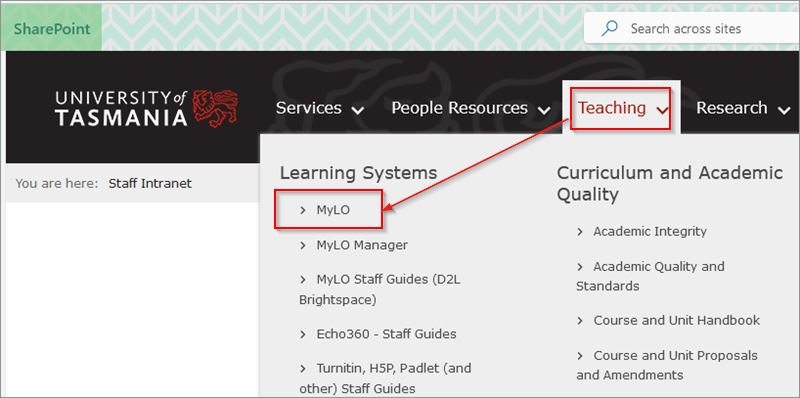
Click on the MyLO link from within the Staff Intranet, underneath the Teaching/ Learning Systems drop-down on the navbar.
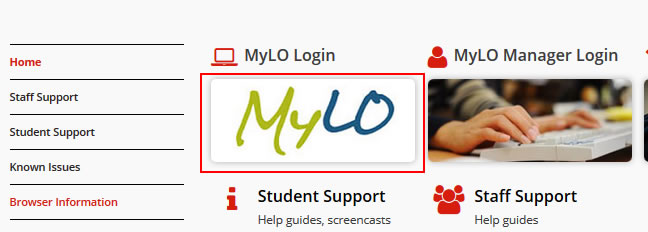
Or click on the MyLO image from our website: https://www.utas.edu.au/mylo
Type in your University email address and Password. Click on Sign In. Note if you have already authenticated by signing in already within your browser you will not need to complete this step.

Once in MyLO you can click on your unit's name or image to access it from within your My Units Widget on your homepage. 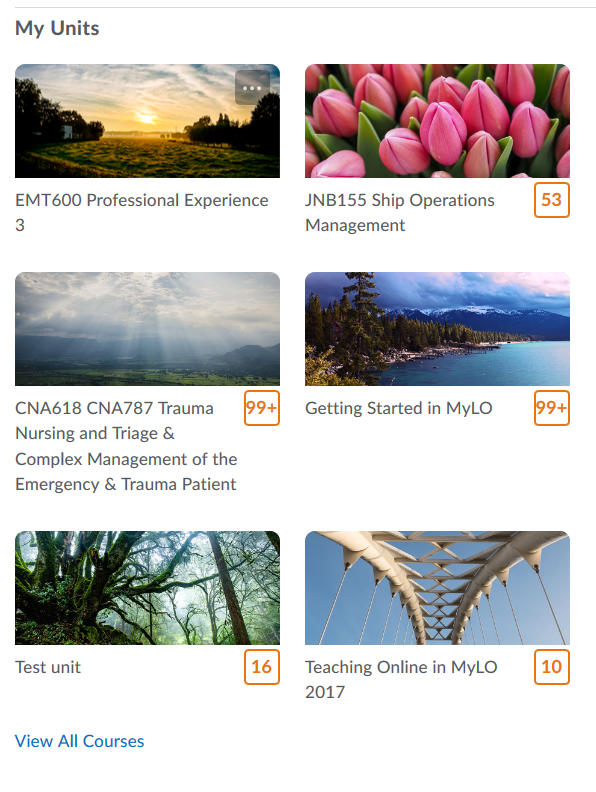
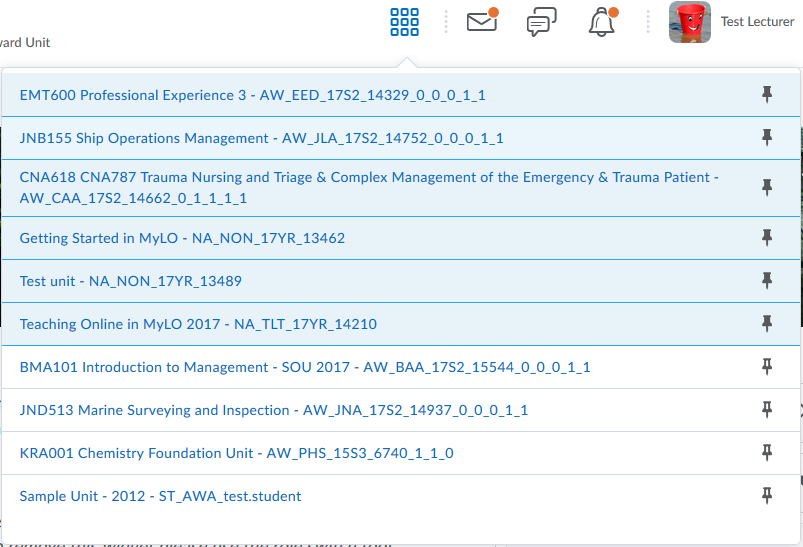
A list of all MyLO sites you are enrolled in, can be accessed using the Waffle "Select a Unit" option in the navigation bar on your MyLO Home page. 
Once you have accessed your unit's MyLO site you can navigate back to the MyLO homepage, directly to another MyLO site that you are enrolled in, as well as back to your unit homepage.
To return to the MyLO homepage click on the My Home link in the top left hand side of the navigation bar.
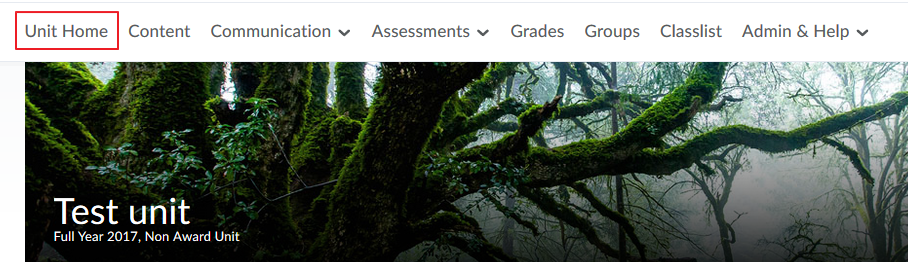
To return to the Unit Homepage press unit Home on the navigation bar.
To access a different unit click on the waffle and search for and press on the unit you want.