MyLO - My Learning Online
Setting Your Account Preferences
Use the Account Settings tool to customise and manage your personal preferences for things such as your online status, MyLO's appearance, accessibility options, language and region, Discussions settings, and Email options.
Access the Account Settings tool
Click on your name in the top of the page and choose account settings
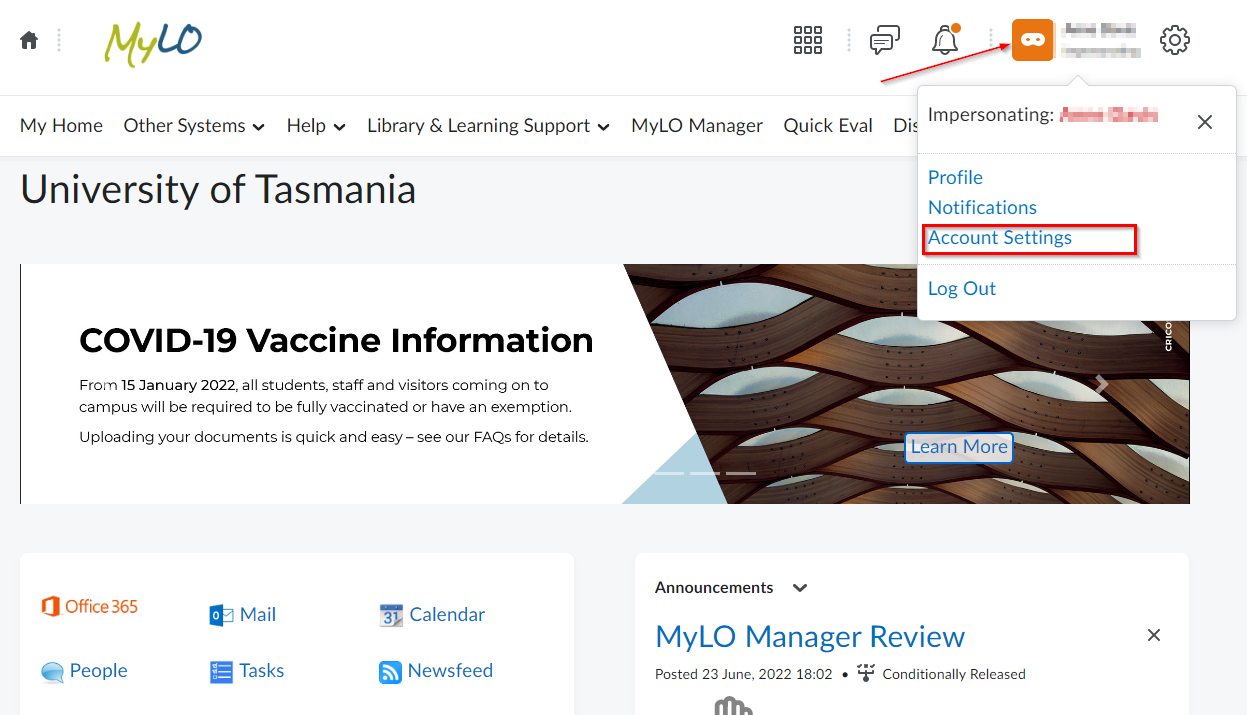
Use the tabs across the top of the page to view and edit display options:
- Account Settings
- Discussions
- MyLO MATE configurations
Account Settings
Settings on this tab are not related to a specific tool.
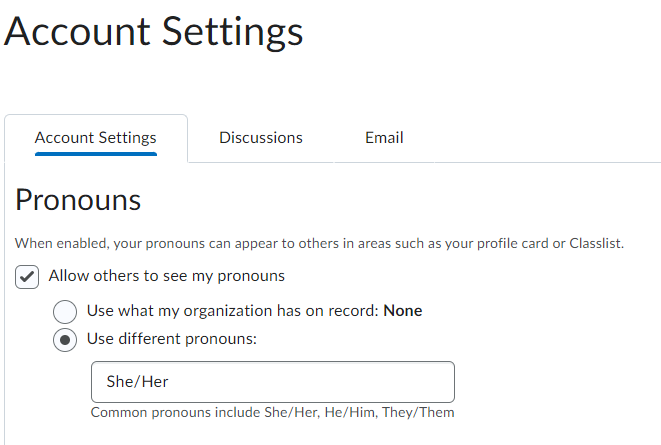
Pronouns
If desired, complete your pronouns by clicking "Allow others to see my pronouns" and selecting " Use different Pronouns" and typing into the text box.
Your pronouns will be visible to staff and students in areas such as your profile card or the unit classlist.
Font Settings
Adjusting the font size changes the default font and size of text in the system. It does not affect images, documents, and other objects such as math equations.
Reading Content
You can turn off the option to automatically mark content as read as you scroll through it.
Video Settings
Select Optimise video presentation for programmatically-driven assistive technologies if you use assistive technology, such as a screen reader, to navigate the web. This option ensures that your assistive technology can detect embedded videos; it does not affect the accessibility of specific video players.
Locale & Language
Preferred Locale and Language Sets which locale to use for screen orientation, text, and graphics in the system. The options in the drop-down list correspond to the locale options available at your institution. Administrative staff and course designers can override your preferences for specific pages and courses.
Clock Sets whether time displays in 24-hour or 12-hour clock format.
First Day of the Week Sets which day appears first in your calendar.
Date Sets the display format of dates in the system.
Number Format Sets the display format of numbers in the system.
Percentage Format Sets the display format of percentages in the system.
Time Zone
Sets all dates that include times in MyLO to correspond with the time zone you specify.
Signing In
Online Status Sets whether you appear offline or online to other users when you are logged into the system.
Application Settings
Click Revoke Access if you want to force all your applications or devices to renew their authentication. This ensures that others cannot, for example, access your grades or send emails as you if you lose a mobile device or discover that a linked application is compromised.
Discussions
Display Settings The following display settings are available:
- Always show the Discussion Topics List : Use this setting to show or hide the list of topics in the View Topic and View Thread pages. Hide it to save space or show it to switch between topics quickly.
- Display deleted posts : Use this setting to display deleted posts when browsing topics. You must also have the permission See Deleted Posts enabled to see deleted posts.
Default View:
- Grid View - Selecting this option will display the discussion posts in the traditional Grid View, with post subjects displaying in a grid or
- Reading View - Selecting this option displays deleted posts when browsing topics.
Reply Settings Use this setting to automatically include the original post by default when composing a reply.
Subscription Settings:
When creating a new thread, subscribe to thread by default.
Availability Condition Defaults
Before Start Dates:
- Visible with access restricted before start
- Visible with submission restricted before start
- Hidden before start
After End Dates:
- Visible with access restricted after end
Visible with submission restricted after end
- Hidden after end
Grid View Settings
- Threaded
- Unthreaded
Email Options
Send a copy of each outgoing message to your UTAS email address Sends a copy of all the emails you send from within MyLO to your UTAS email address.
Save a copy of each outgoing message to the 'Sent Mail' folder Saves a copy of your sent messages to a folder for convenient record keeping within MyLO.
'Reply to' Email Address If users reply to email you've sent from the Email tool, the reply-to address you specify appears in their "To:" field.
Email Signature Create an email signature to include at the bottom of your email messages.
MyLO MATE
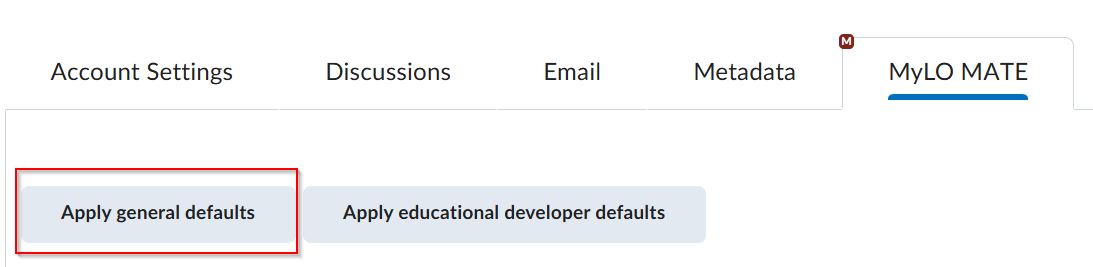
Select your defaults. Pressing Apply general defaults will give you the most useful MyLO MATE tools to use within your units. You can toggle any of these on and off as you wish.