
MyLO - My Learning Online
Marking Assignments using MyLo
There are three main methods for marking assignment submissions to MyLO.
- The built-in MyLO Evaluate Submission process.
- TurnItIn Feedback Studio
- Downloading submissions and marking with 3rd party software.
Assignment Folders page

Select Assignments from the Assessments menu.
Select the assignment you wish to assess.
Submissions page
Pressing on the tile of the assignment takes you to the submissions page. MyLO Mate will automatically show you all students whether they have submitted or not. It is possible to change your view from users to groups as well as to hide users without submissions.If you are a tutor, view by groups, and select the group you are responsible for. Make sure you click on the Apply button after selecting your group.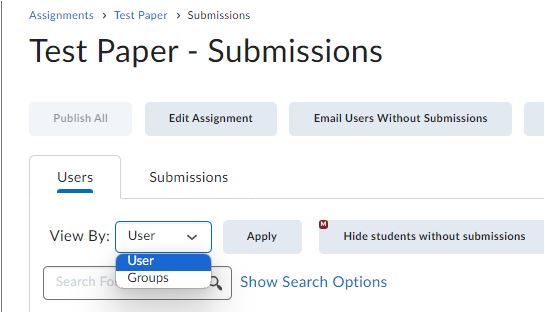
To access a student's work to begin marking, press on the file name or Go to Evaluation.
Evaluate Submissions page
This page shows all the submissions this student has made for this assignment.
- Click on the assignment you wish to evaluate.
- Even if the student has made no submissions (they emailed you their assignment for example) you can still fill in an evaluation.
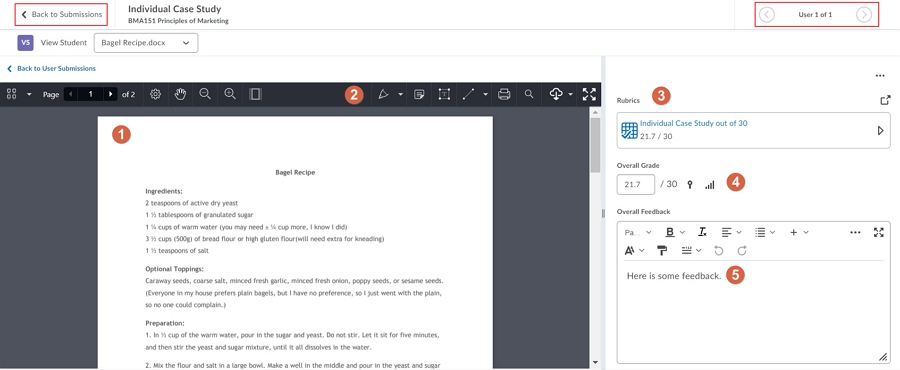
- Read through the assignment.
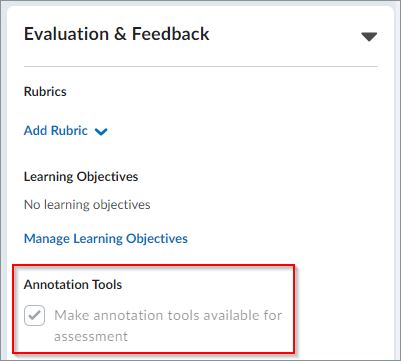
- Use the annotation tools within the system to markup the document ( these need to be turned on within the assignment).
- Click on the rubric name in the Evaluation area
- If there is no Rubric associated with the assignment folder this won't appear
- Mark the work according to the criteria by hovering over each criteria. This will show the score and information. Select the criteria you wish form the slider view by pressing on it.
- To open the Rubric in a new window press on the Open icon at the right hand side of the screen.
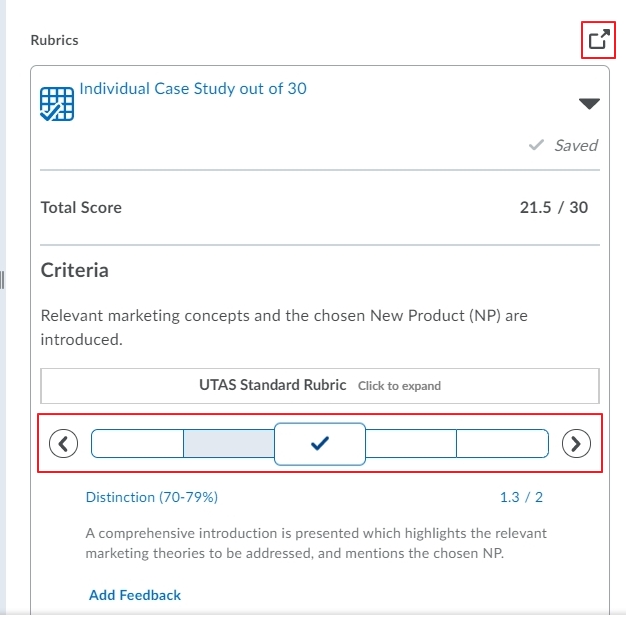
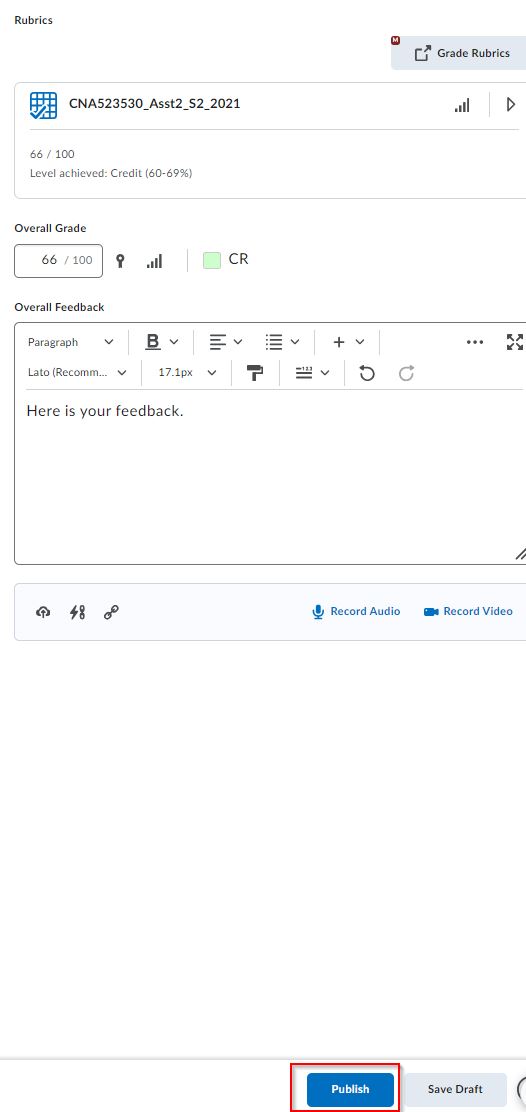
- Enter a Score
- If you marked this assignment via a Rubric this score will already be filled in - unless it is a text only rubric.
- If there is no Grade Item or "out of" associated with the assignment folder this won't appear.
- Click in the Feedback box and enter your general feedback
- Your feedback can include links to content or other activities within the MyLO Unit.
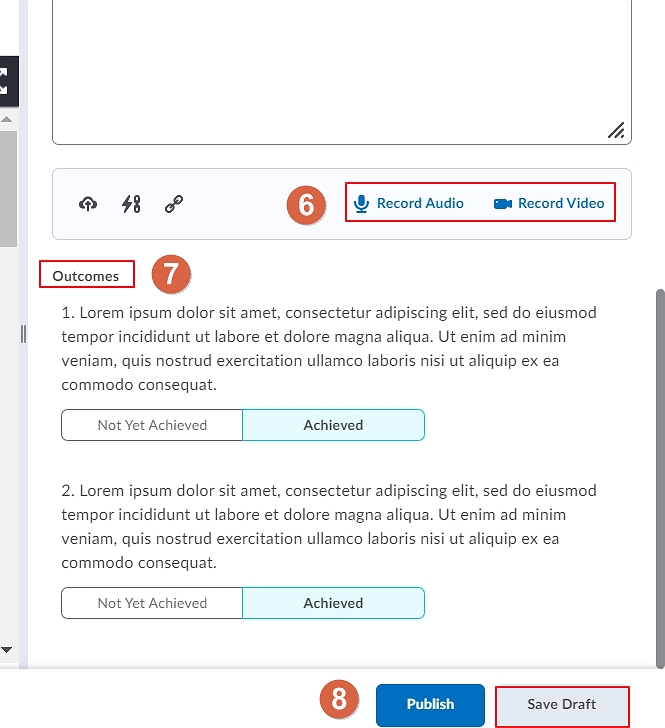
- You can also make a short audio or video recording of your feedback, or attach a feedback file.
- Select your Outcomes
- Outcomes may be automatically graded if attached to a rubric, but you can select these manually to show that a student has achieved a learning outcome associated with the unit.
- Save your work
- Click Save Draft to save but not release to student
- Click Publish to release to student. It is recommended that feedback is published all at once which can be done from the submission view page.( See below Releasing Results)
To access Turnitin press on the Similarity Report Score: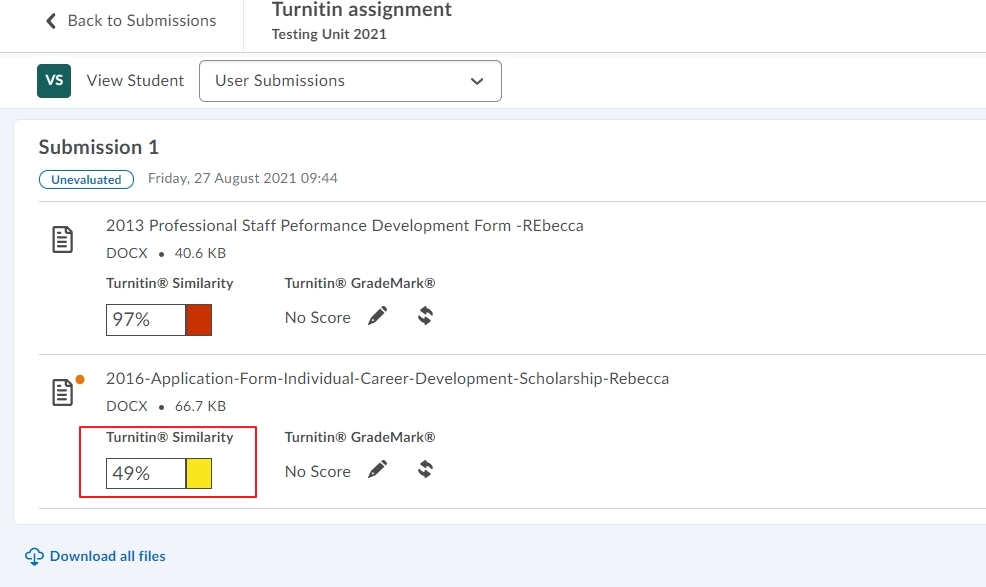
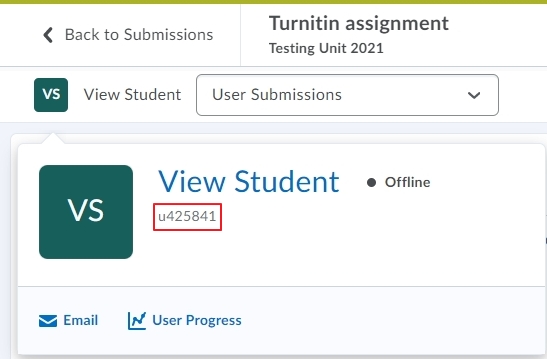
To access the Student ID, or other student information, hover over the student name within the evaluation area.
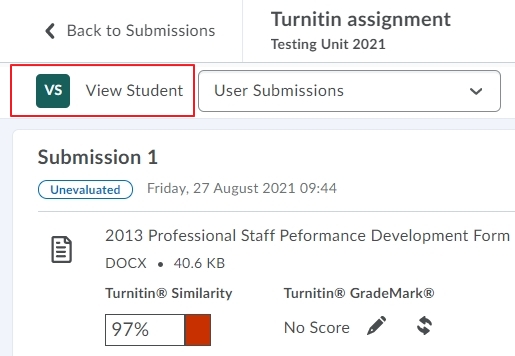
This will open up the Student Profile card which contains the student ID, if the user is online, a link to User progress and the ability to email the user directly.
To finish marking click Back to Submissions. To continue marking, click Next Student at the bottom of the page or the next User at the top of your screen.
A video of the assignment evaluation experience is here:
Releasing results
To instantly release your feedback to a student click Publish on the student's Evaluation Submissions page.
To hold back releasing individual results and do it for the whole class at the same time:
For each student click Save Draft on the student's Evaluation Submissions page
When you are ready to release all the results:
- Go to the Submissions page
- Select all the students
- Click Publish Feedback. You will get a confirmation message as below.

Note: If you publish feedback for one student and you are using Turnitin Feedback Studio, this will release the GradeMark feedback for all students. If you do not wish your students to view this feedback, un-tick the option to allow students to view their similarity reports beforehand. More information is here