
MyLO - My Learning Online
Creating an Assignment Folder (+ TurnitIn)
Create an Assignment Folder
- Select the Assessments link on the navbar and select Assignments from the drop-down menu
- On the Assignment page, select the New Assignment button.

The primary panel on the left contains frequently used fields that are always displayed. These fields are most relevant to students and are the core details lecturers want to add; a due date, instructions, and attachments.
The panel on the right organises additional, more advanced options such as start and end dates, rubrics, annotation tools, and Turnitin. When these options are collapsed, the summary text provides details about which settings are active and subtle hints that aid in the discovery of additional settings. As a result, you can see everything at a glance with little to no scrolling, and without having to navigate through any tabs.

- Enter a meaningful title (taken from your Assessment Task Descriptions section of your Unit Outline) in the Name field.
- Add your Learning Outcomes.
- The process of linking assignments to your gradebook is streamlined. Enter the score in the Grade Out Of that represents full marks for the task. Select the relevant Grade Item from the drop-down menu ( In Grade Book), or create a grade item here.
- Enter the Due Date and set the date and time to match the due date and time presented in the Unit Outline.
- Enter clear and detailed instructions for the students, as well as a link to the Discussion Topic (or other location) where students are able to ask questions about the assessment task in the Instructions field
- Add further information via attachments, or link to content items for more information
- Open the Availability Dates & Conditions to enter a Start Date and End Date. Set the dates as needed. The start date will allow students to submit from that date, the end date will be when students can submit late submissions until. All late submissions will be marked as late with the time given in days/ hours. You can also add Release conditions and give special access to students to submit outside the set dates.
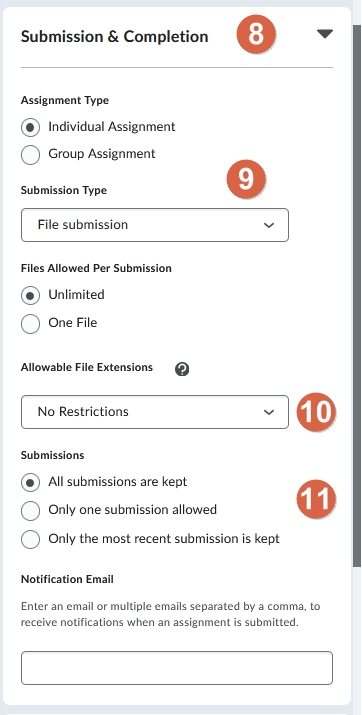
- Open the Submission & Completion section to update these options.
- Select either an individual or Group assignment. More information on group assignments can be found here. Note: that once submissions are made you cannot change this setting. Select your assignment type - File submission, Text submission( users type text directly into the submission area), on-paper submission ( users have given a hard copy assignment) and Observed in person.
- You can set for only a specific file to be submitted- such as PDF or Word, or you can allow all with No Restrictions. If using Turnitin you can also select to only allow Turnitin compatible files.
- Select if you wish to only have one submission or keep all.

- Open the Evaluation & Feedback section
- Add your marking Rubric.
- Tick to allow annotation tools to be available within the Document Viewer, and to select Anonymous marking if required (this flows into Turnitin if used).
- Press on Manage Turnitin to open Turnitin settings. If you are not going to use Turnitin for similarity checking, then you can select the Save and Close button.
Setting up Turnitin
Enabling Turnitin allows you to use GradeMark to provide feedback online.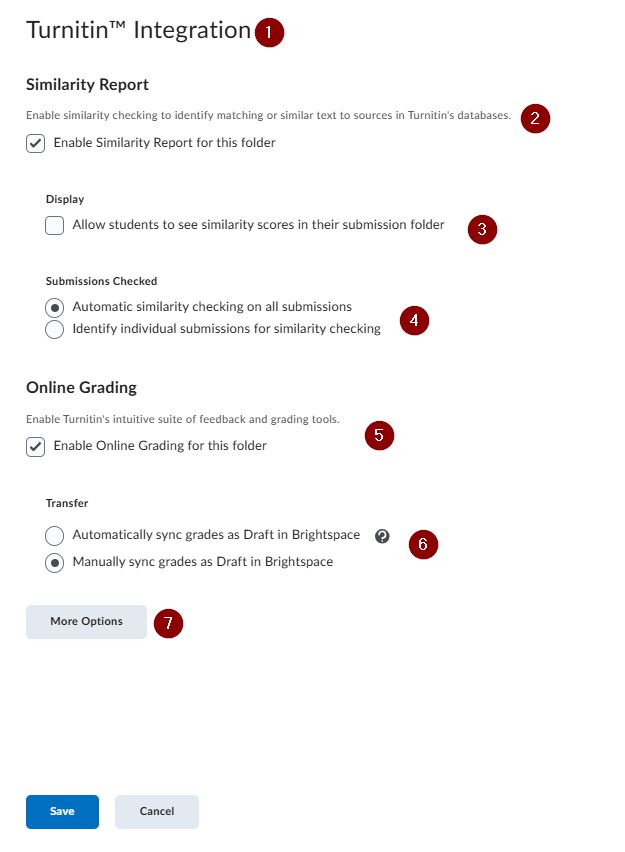
- The Turnitin Integration pop-up allows you to select your options for use with Turnitin.
- Select the check box to enable Similarity Reports for this assessment.
- Checking the box enables students to view the similarity scores for this assignment folder. It is advised to keep this unchecked while marking is underway.
- Select the Automatic similarity checking on all submissions radio button so that all submissions are checked automatically when submitted.
- Select this option so that you can use Online Grading within Turnitin - Feedback Studio
- Select "Manually sync grades". Choosing to Automatically transfer grades, will carry any scores given within Turnitin to your feedback area for you - however, grading is usually done via a Rubric in MyLO and not within Turnitin.
- Open the More Options in Turnitin.
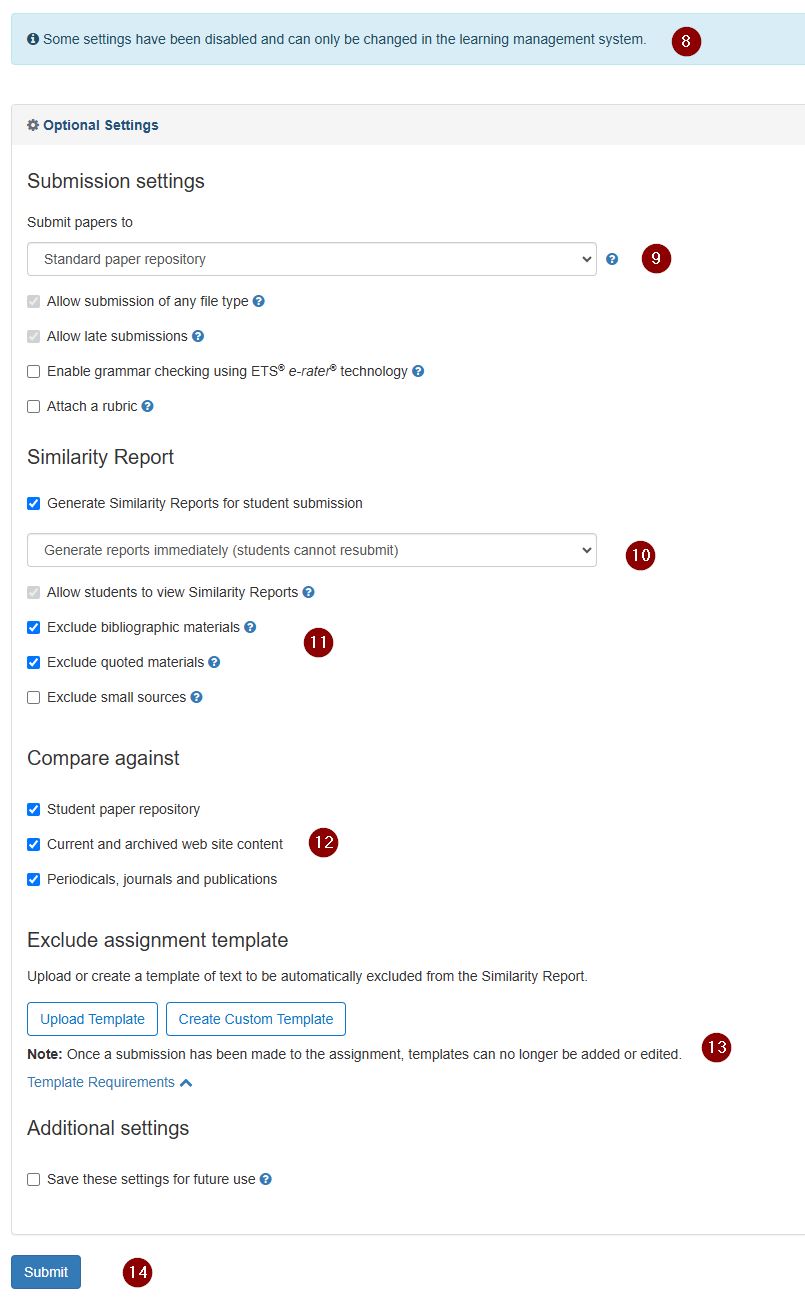
- Note some of these can only be set within the assignment fields.
- Submission settings allow you to select a repository. It is fine to keep the default selected.
- Similarity Report: select Generate reports immediately.
- Choose any items you wish to be excluded from your Similarity report- such as a Bibliography.
- The default is to compare students against all three items- the student repository, web content and periodicals and journals.
- You can upload a template if all students are using one within the assignment, so they are not matched against this.
- Save these settings for future use and press Submit.