
MyLO - My Learning Online
Creating a Video Assignment
Students can now use the Easy Embed feature of Echo360 to embed a video assignment into an HTML editor. This saves the student from having to create a public link to the assignment, copy this link and then share the link in order for you to view their assignment.
D2L and Echo360 now support the lockdown of student-created media used within assignments so they cannot edit or delete content after submission. When selecting to embed in an assignment students will now see a new option under insert stuff - Echo360 Student Submissions. The students need to select this when embedding. This will then lockdown their media. There is no change to what teaching staff currently see or access.
To create a video assignment follow the steps as outlined in this guide how to create an assignment folder
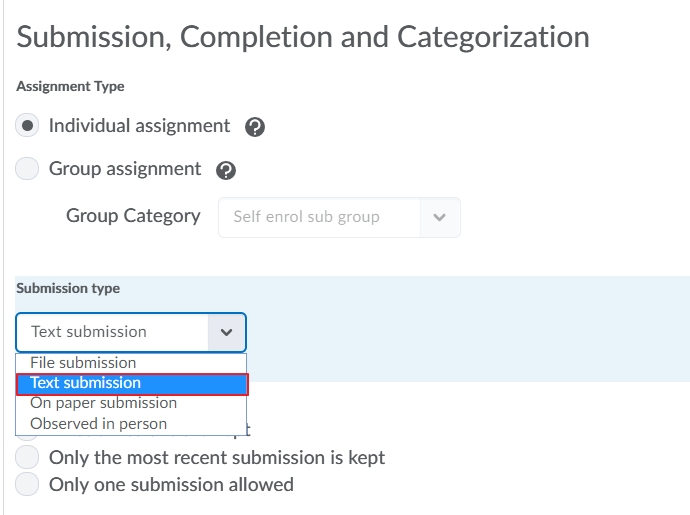
When you get to step five ensure you select Text Submission as the file type for your Video Assignment.
Your students will now be able to share their video recordings into the assignment folder. Instructions for students can be found in this guide: Uploading Video Assignments
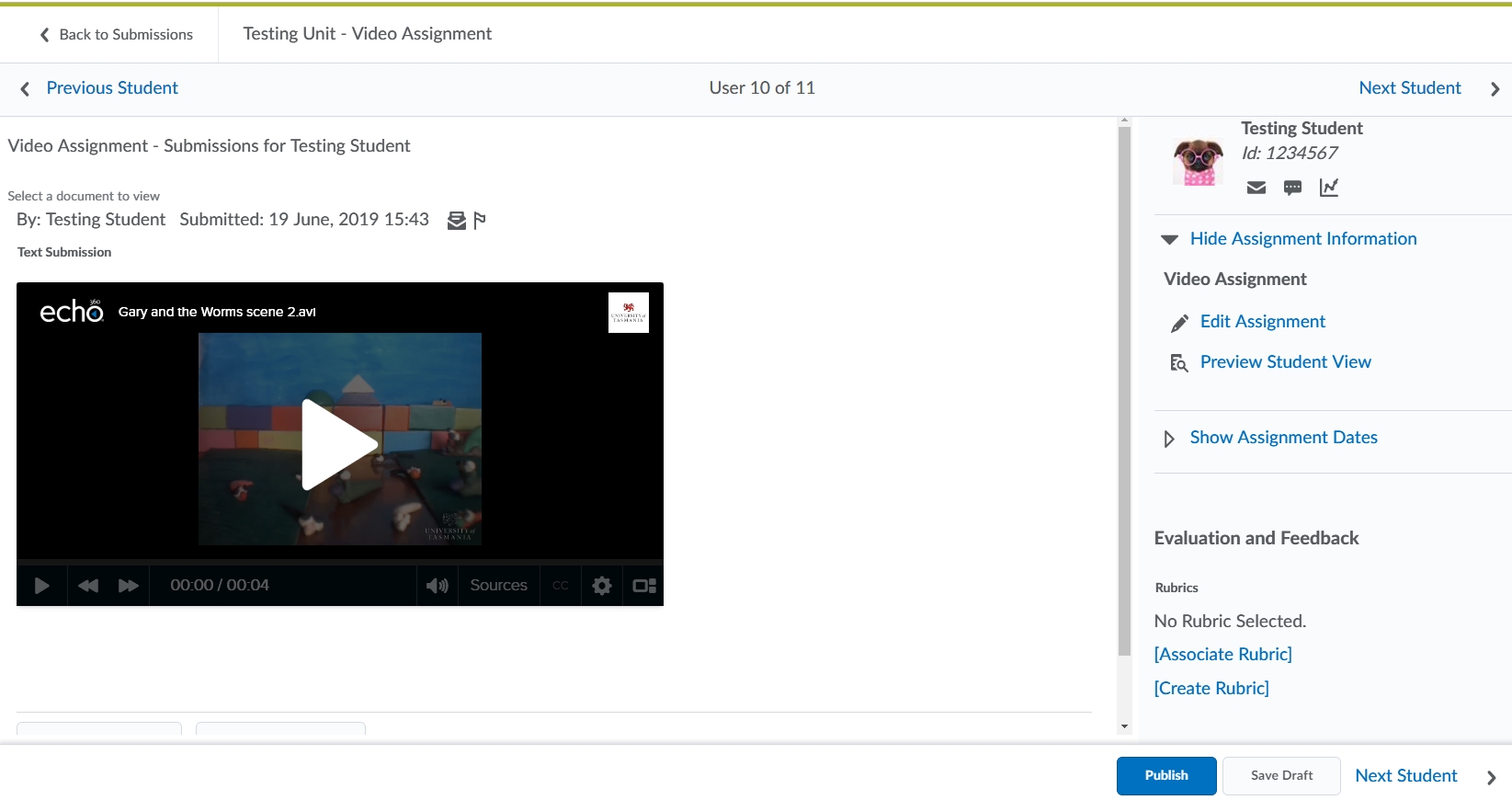
Submissions will appear in the Evaluate screen. You can press play to view the recording and mark as per normal.
A how to video is also available here to watch.