
MyLO - My Learning Online
Marking Assignments Offline
There are three main methods for marking assignment submissions to MyLO.
- The built-in MyLO Evaluate Submission process.
- TurnItIn Feedback Studio
- Downloading submissions and marking with 3rd party software.
Assignment Folders page

Select Assignments from the Assessments menu.
Select the assignment you wish to assess.
Step One - Download the Assignments.
If your students have submitted their assignments via MyLO this is how you download them onto your computer. If you wish your download to be in a specific format put in a job to the Help Hub requesting this.
Submissions page
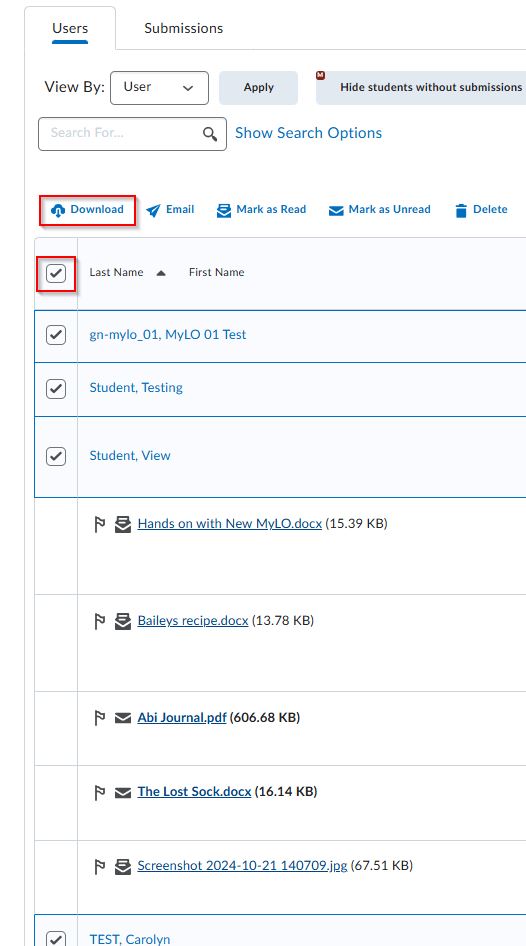
Make sure you are in the Files tab. Select the file(s) you wish to download or to select all the files click the tick box beside the Download link. Click Download. A new window pops up with a ZIP file. This is a single ZIP file that contains all the assignments you selected. Click on the ZIP file to download to your computer.
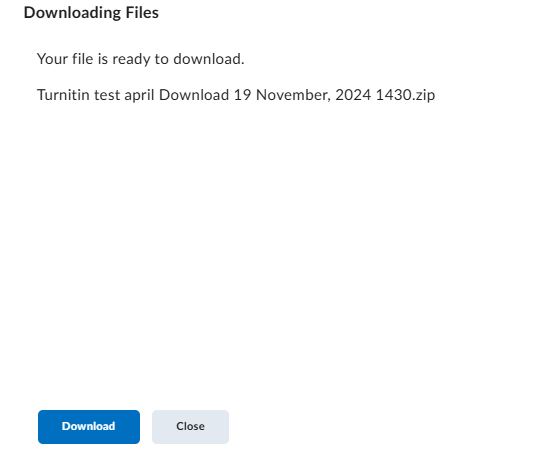
Find where you downloaded it to on your computer and double-click in the ZIP file to extract it's contents.
Step Two - Mark the assignments offline
Use your preferred method to mark assignments.
Step Three - Enter score into MyLo and upload marked assignments
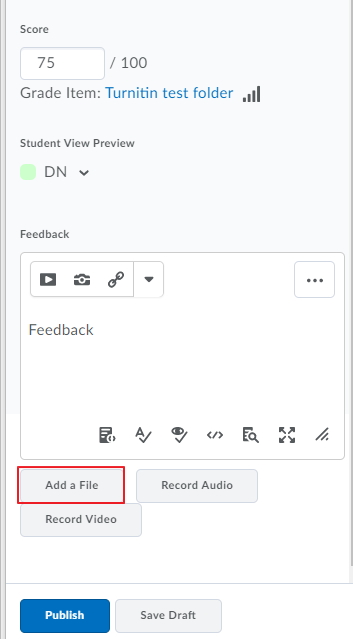
Use the Feedback Box's Add a File to upload the marked assignment from your computer. If you wish to upload your feedback files in bulk ( in one go rather than one by one) refer to this help guide: Uploading Marked Assignments
Releasing results
To instantly release your feedback to a student click Publish on the student's Evaluation Submissions page.
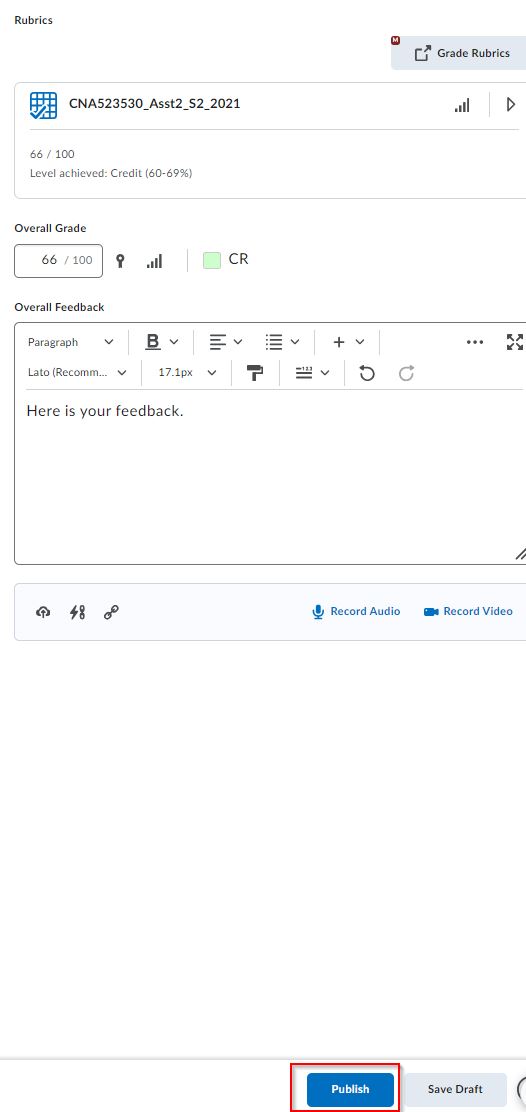
To hold back releasing individual results and do it for the whole class at the same time:
For each student click Save Draft on the student's Evaluation Submissions page
When you are ready to release all the results:
- Go to the Submissions page
- Select all the students
- Click Publish Feedback. You will get a confirmation message as below.

Note: If you publish feedback for one student and you are using Turnitin Feedback Studio, this will release the GradeMark feedback for all students. If you do not wish your students to view this feedback, un-tick the option to allow students to view their similarity reports beforehand. More information is here