
MyLO - My Learning Online
Marking Assignments using Turnitin
There are three main methods for marking assignment submissions to MyLO.
- The built-in MyLO Evaluate Submission process.
- TurnItIn Feedback Studio
- Downloading submissions and marking with 3rd party software.
Assignment Folders page

Select Assignments from the Assessments menu.
Select the assignment you wish to assess.
Submissions page
Pressing on the tile of the assignment takes you to the submissions page. MyLO Mate will automatically show you all students whether they have submitted or not. It is possible to change your view from users to groups as well as to hide users without submissions.If you are a tutor, view by groups, and select the group you are responsible for. Make sure you click on the Apply button after selecting your group.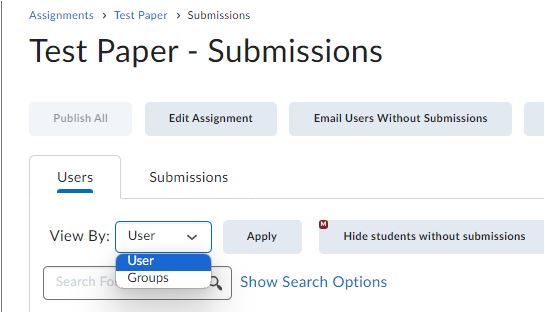
The list of submitted assignments will show as seen in the image below.

- Name of the file uploaded by the student.
- The Similarity Report returned by Turnitin
- If you add a score within Turnitin this is added here.
- Pressing on the pencil icon will take you to Feedback Studio to begin marking - you can also access Turnitin by pressing on the Similarity report.
- Refresh Turnitin and Grademark information if needed
- MyLO Mate will give a submission overview- which includes a list of assignments, their status and if any rubrics are incomplete.

- Grade mark
- Enter the assignment's mark here (if used).
- This is fed back to MyLO.
- This is optional and not widely used within UTAS. If you don't fill in the this GradeMark you can still enter a score for the assignment back in MyLO (however the student won't see the GradeMark score on their assignment)
- Next/Previous assignment
- Move on to the next submission without having to go back to MyLO.
- Layers
- Turning Layers on and off from appearing over the assignment.
- Layers include Comments, Similarity highlights, etc.
- Flags
- Flags indicate something for you to investigate further
- Similarity tools
- Match Overview - highlights text that Turnitin has found to match other sources.
- All Sources - show all the sources that Turnitin has found for passages in the assignment.
- Filters and Settings - tweak how Turnitin displays matches
- Turn off matching.
- Download and Information
- Download a copy of the assignment to your computer
- Display information and statistics about the assignment.
- Commenting Tools
- Clicking anywhere on the document (or dragging to select whole passages) allows you to:
- Place a QuickMark (Tick Box symbol)
- Place a Comment (Speech Bubble symbol)
- Insert some text (if you just clicked on the assignment without selecting a passage)
- Strike Out text (if you selected a passage)
- This is particularly useful for providing student feedback.
- Clicking anywhere on the document (or dragging to select whole passages) allows you to:
Click on either the student's name or Go To Evaluation for the student you wish to mark.
Evaluate Submission page

This page shows all the submissions this student has made for this assignment. It also shows the Turnitin Similarity Score.
To access the TurnItIn Feedback Studio interface for a submission, click on it's Similarity score as shown above.
Turnitin Feedback Studio interface
Changes in the Turnitin Feedback Studio interface are saved instantly in the background.
If you add a grade within Turnitin you can select the Use this grade option. Note that this will override any other mark given via a Rubric or manually added in the Overall grade area. UTAS markers usually do not enter a grade within Turnitin itslef, instead giving overall grades via a rubric.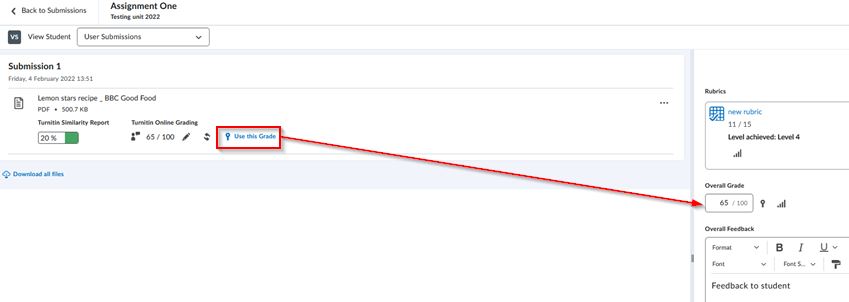
Note: the Score field will only appear if the assignment folder has a Grade Item or "Out Of" associated with it.
Releasing results
To instantly release your feedback to a student click Publish on the student's Evaluation Submissions page. To release all your students grades at once:
 To hold back releasing individual results and do it for the whole class at the same time:
- For each student click Save Draft on the student's Evaluation Submissions page
- When you are ready to release all the results:
- Go to the Submissions page
- Select all the students
- Click Publish Feedback. You will get a confirmation message as below. GradeMark will be visible to students immediately ( whether a score has been added within Turnitin or not).

Note: If you publish feedback for one student this will release the GradeMark feedback for all students. If you do not wish your students to view this feedback un-tick the option to allow students to view their similarity reports beforehand. More information is here
Note: It is important that you select Publish Feedback /Publish%20feedback%20icon_41x43.png) to publish scores and feedback within GradeMark® to the selected students. If you Publish Feedback elsewhere the students will not be able to view the GradeMark comments.
to publish scores and feedback within GradeMark® to the selected students. If you Publish Feedback elsewhere the students will not be able to view the GradeMark comments.